Quick order list section
Quick order list section.
The same section in the three themes:
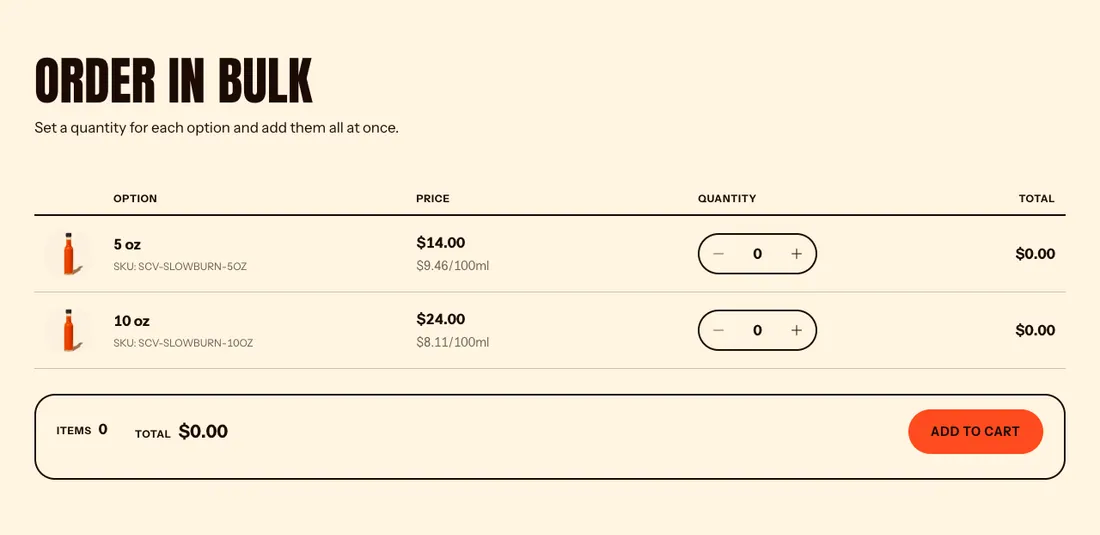
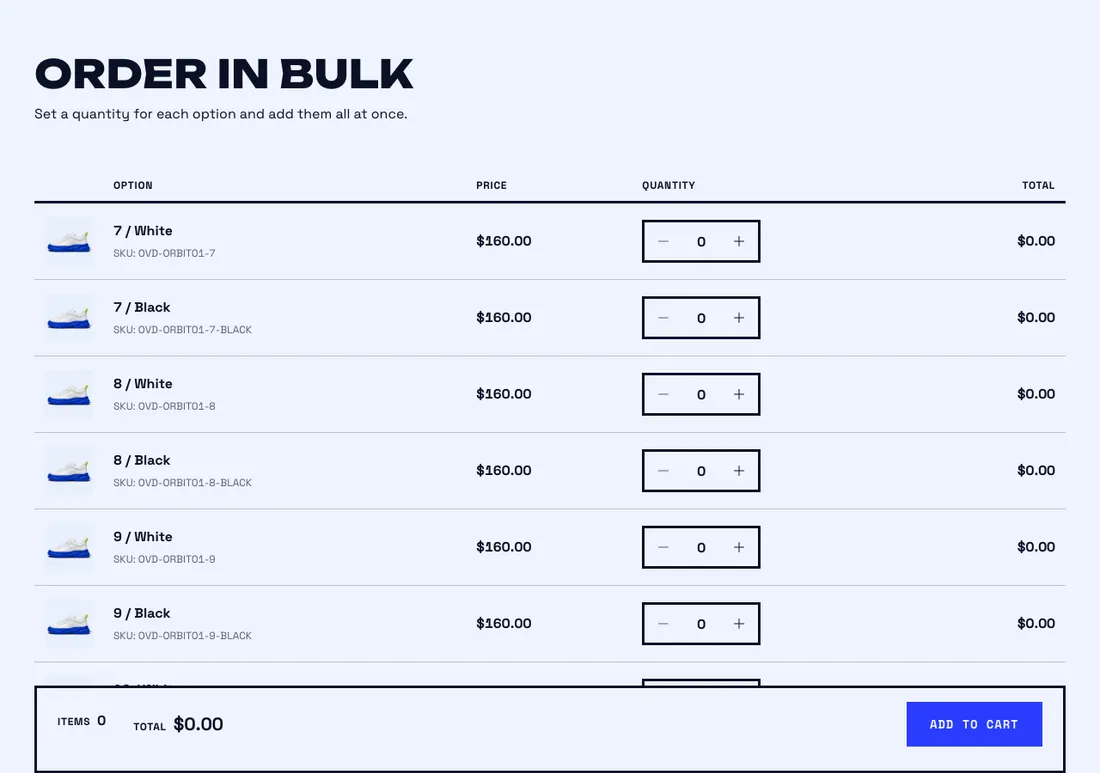
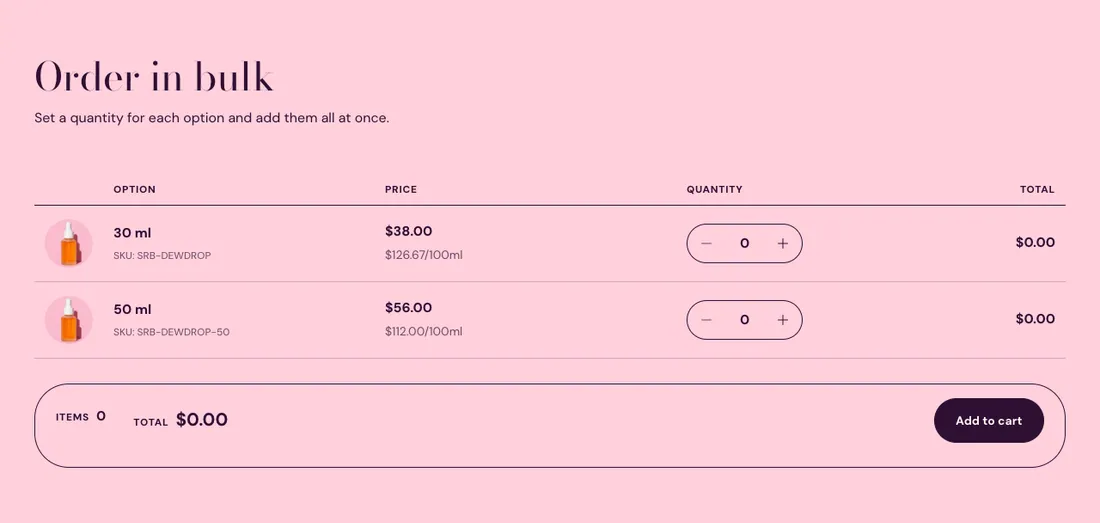
Where to find it: In the theme editor, choose Add section on any template, then pick Quick order list.
The heading area is a static block named Section header. Select it in the section sidebar to edit the eyebrow, heading, text and buttons, or to restyle or reorder them.
When you add this section, it starts from the Quick order list preset.
Settings
Section titled “Settings”Lists every option of the product with a quantity field, so shoppers can add or change many at once. Order rules and volume pricing from B2B catalogs are applied when the store has them.
| Setting | Type | Default | Options | Notes |
|---|---|---|---|---|
| Show images | Checkbox | On | ||
| Show SKU | Checkbox | On | ||
| Show volume pricing | Checkbox | On | Shows price breaks set in a B2B catalog. Shoppers without volume pricing see nothing extra. | |
| Hide sold out options | Checkbox | Off | ||
| Options per page | Slider | 25 | 10 to 50, step 5 | |
| Open the cart after updating | Checkbox | Off |
Section style
Section titled “Section style”| Setting | Type | Default | Options | Notes |
|---|---|---|---|---|
| Color scheme | Color scheme | Scheme 1 | ||
| Layout width | Select | Page width | Page width, Full width | |
| Animation on scroll | Select | Theme default | Theme default, None, Fade, Slide up, Scale in, Wipe, Blur in | |
| Top padding | Slider | 64 px | 0 to 200 px, step 8 | |
| Bottom padding | Slider | 64 px | 0 to 200 px, step 8 |
Blocks
Section titled “Blocks”Add, reorder, duplicate or remove these blocks in the section sidebar: Section header.
Section header block settings
Section titled “Section header block settings”| Setting | Type | Default | Options | Notes |
|---|---|---|---|---|
| Layout | Select | Stacked | Stacked, Split: content left, button right | |
| Alignment | Select | Left | Left, Center, Right | Shown when Layout is Stacked. |
| Max width | Select | None | None, Narrow, Normal | |
| Gap | Slider | 12 px | 0 to 64 px, step 4 | |
| Space below | Slider | 48 px | 0 to 120 px, step 4 | |
| Animation on scroll | Select | None | Theme default, None, Fade, Slide up, Scale in, Wipe, Blur in |