Add your own styling
Your theme has a Custom CSS box in Theme settings. CSS is the code that controls how things look. Try the normal settings first.
Try the normal settings first
Section titled “Try the normal settings first”Most changes do not need code. Settings are safer, and they stay in place when you update the theme.
- Colors: Change colors
- Fonts and text sizes: Change fonts
- Movement: Animation
Duplicate your theme
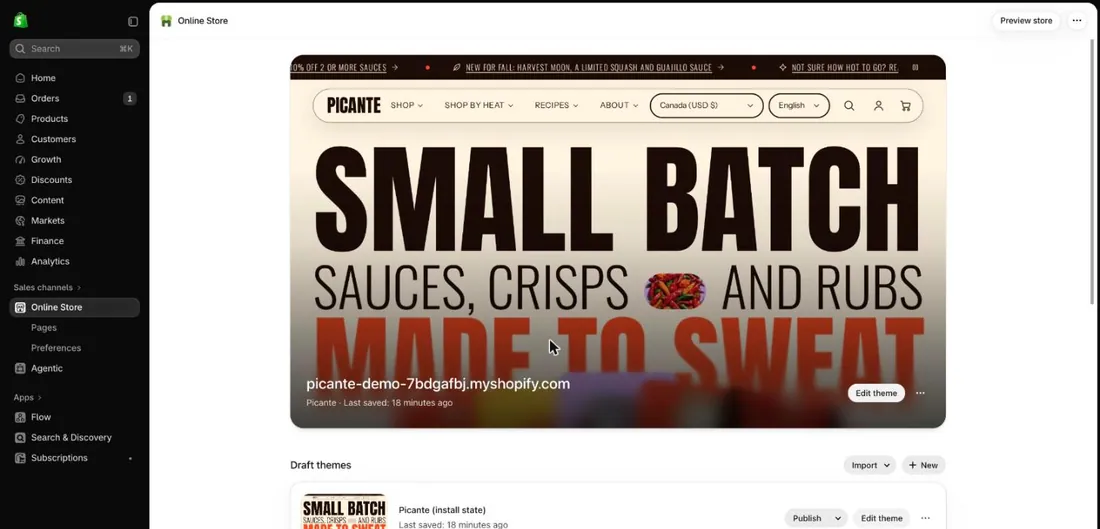
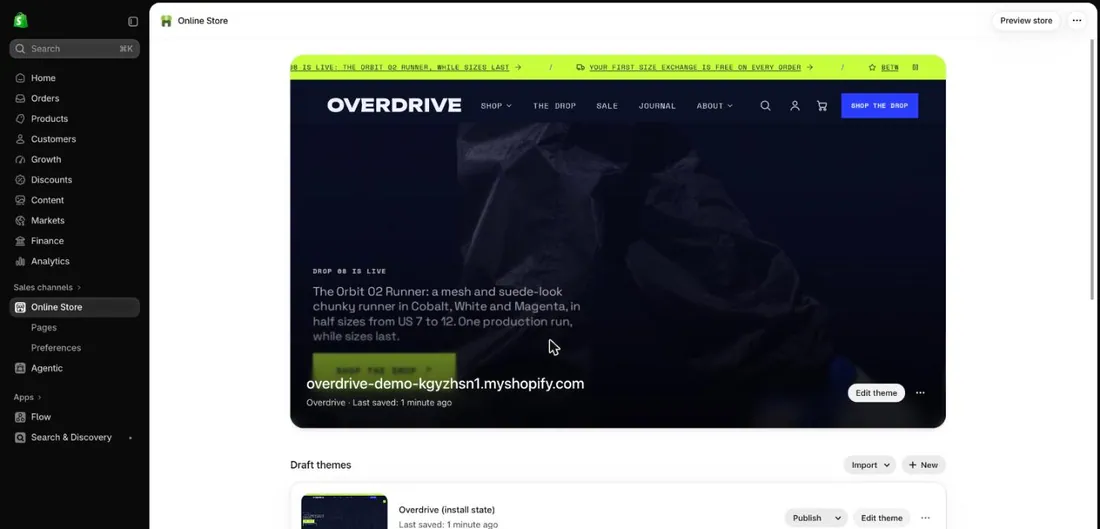
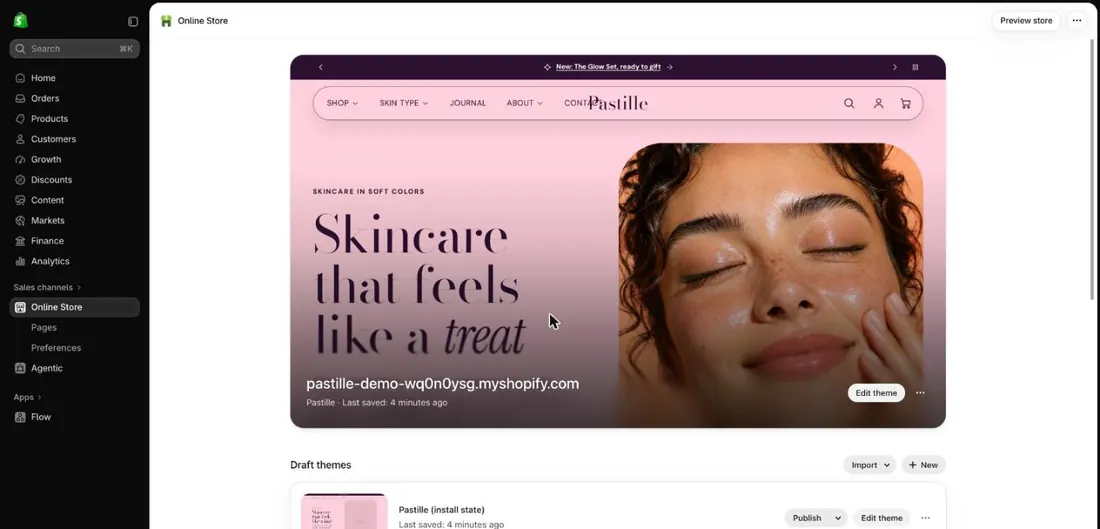
Section titled “Duplicate your theme”- In your Shopify admin, select Online Store (marker 1).
- Select the three dots next to your theme, then Duplicate.
- Select Edit theme (marker 2) next to the copy.
Add your code
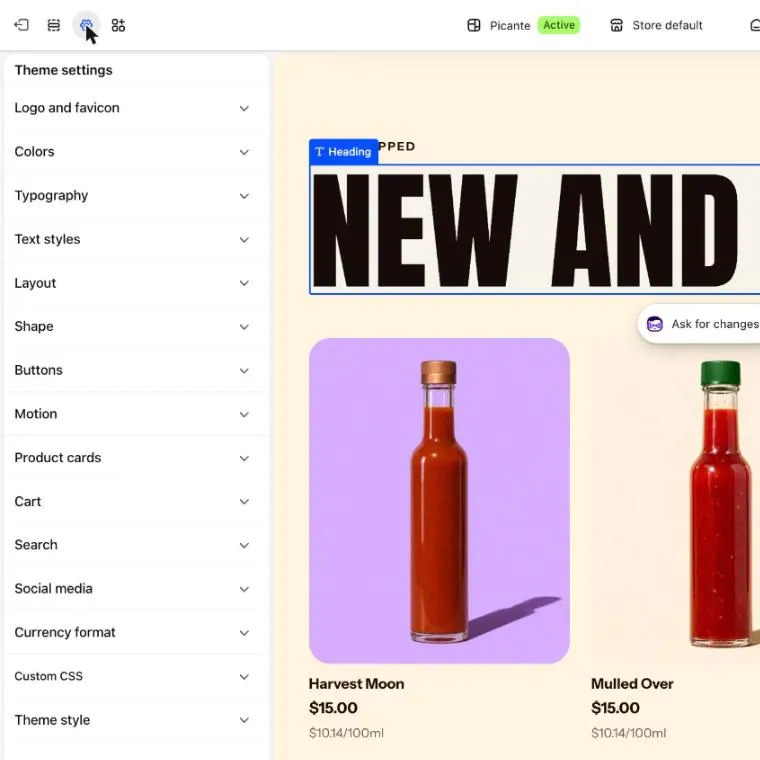
Section titled “Add your code”- Select the Theme settings icon (marker 1).
- Open Custom CSS in the list (marker 2).
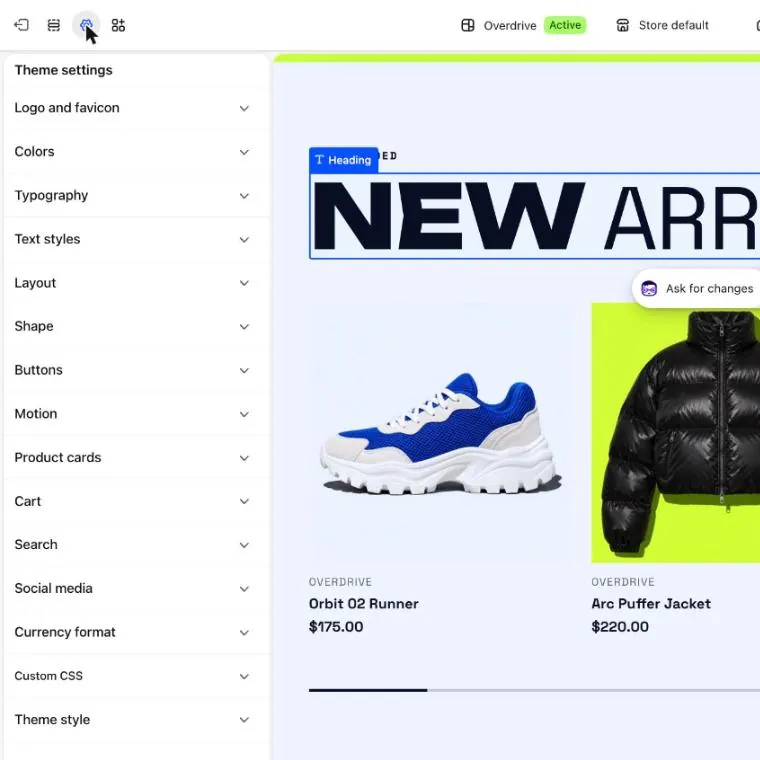
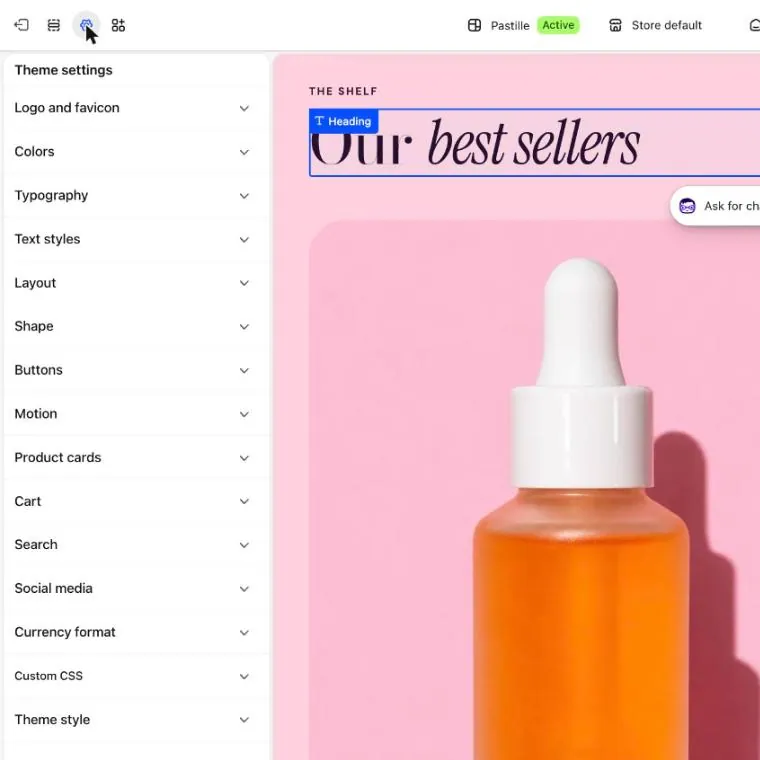
- Paste your code into the box.
- Check the preview on a computer and on a phone.
- Select Save.
Good to know
Section titled “Good to know”- To undo a change, delete the code and select Save.
- Paste only code you trust and understand. It runs on your live store.
- Check the copy before you publish it.
- Your code may stop working after a theme update.