Switch your theme style
Each Spicydesign.ca theme can switch to the look of the others. Shopify calls this the Theme style, and you change it in Theme settings. Make a copy of your theme first, so you can compare.
- In your Shopify admin, select Online Store (marker 1).
- Select the three dots next to your theme, then select Duplicate.
- Find the copy under Draft themes. Select Edit theme on the copy. It looks like marker 2.
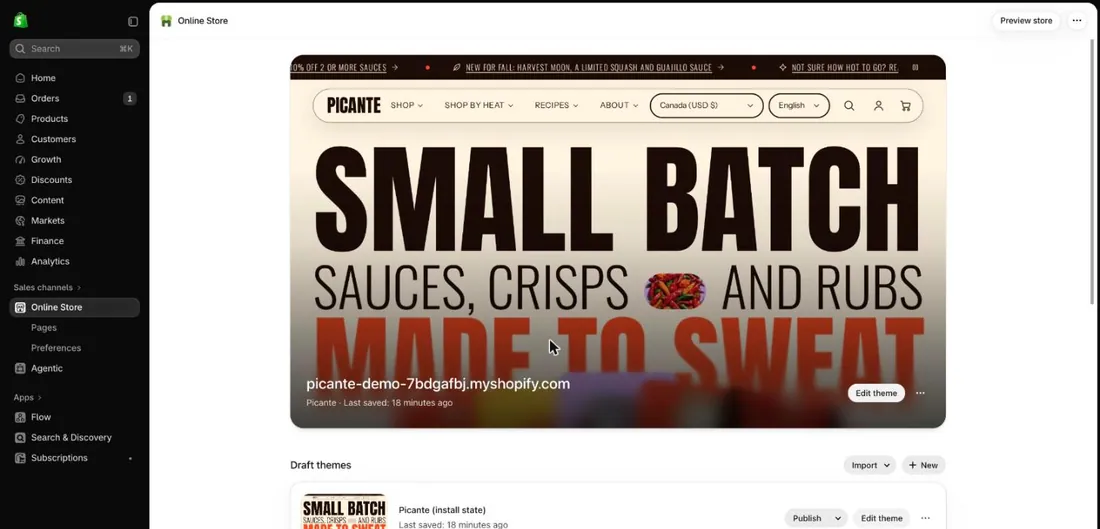
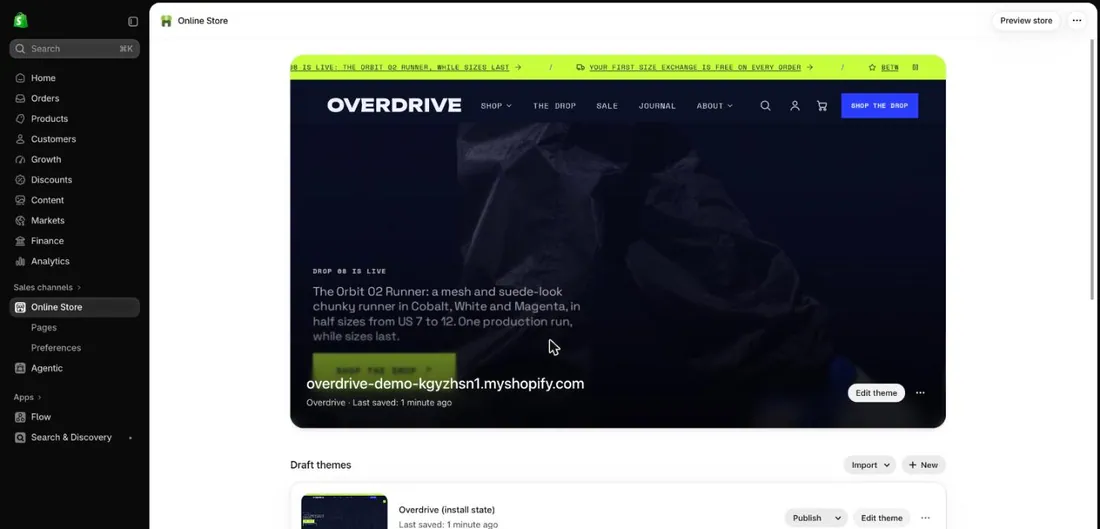
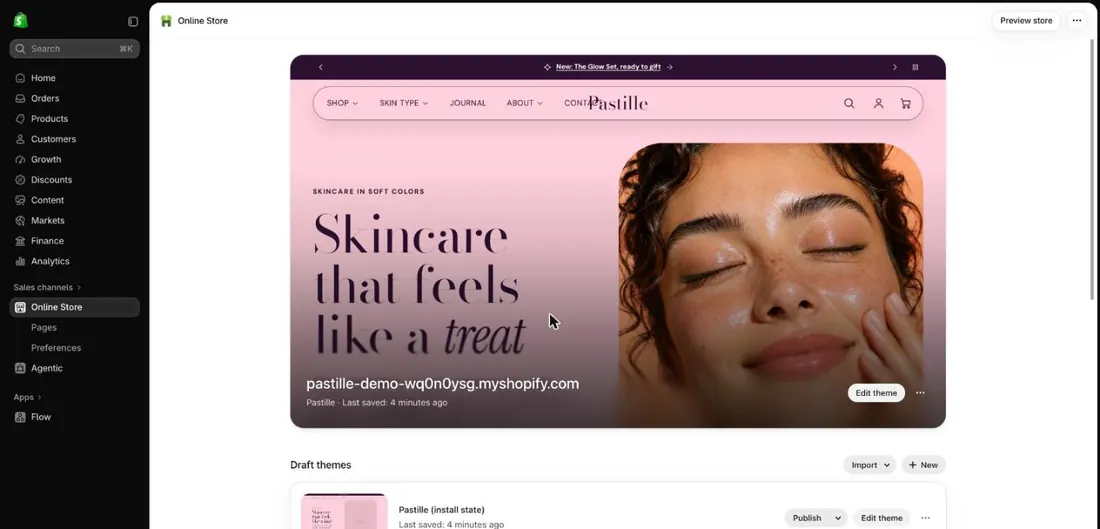
- Select the Theme settings icon (marker 1). It is the gear at the top left.
- Look at the list of groups (marker 2). You will find Theme style at the bottom.
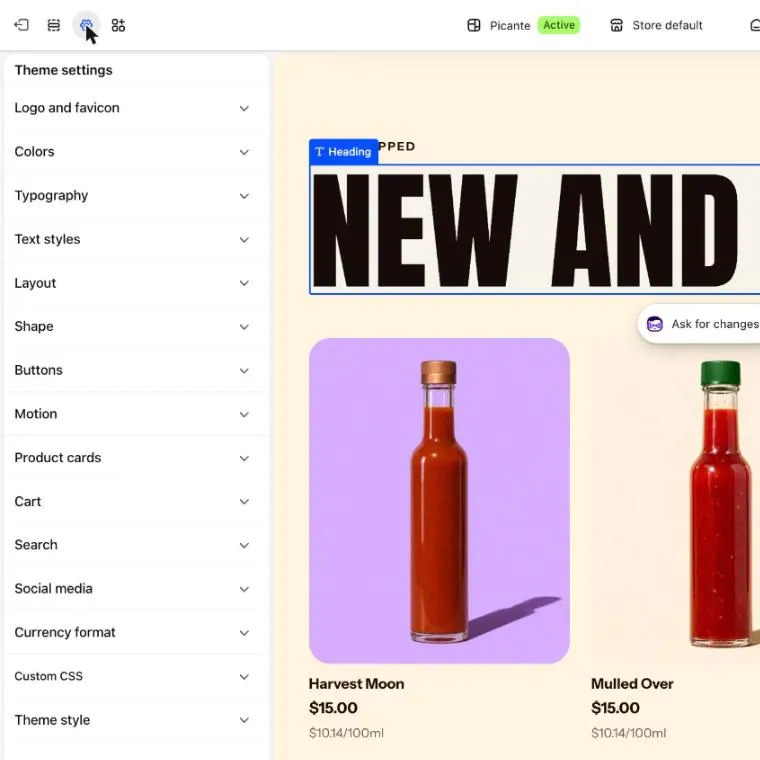
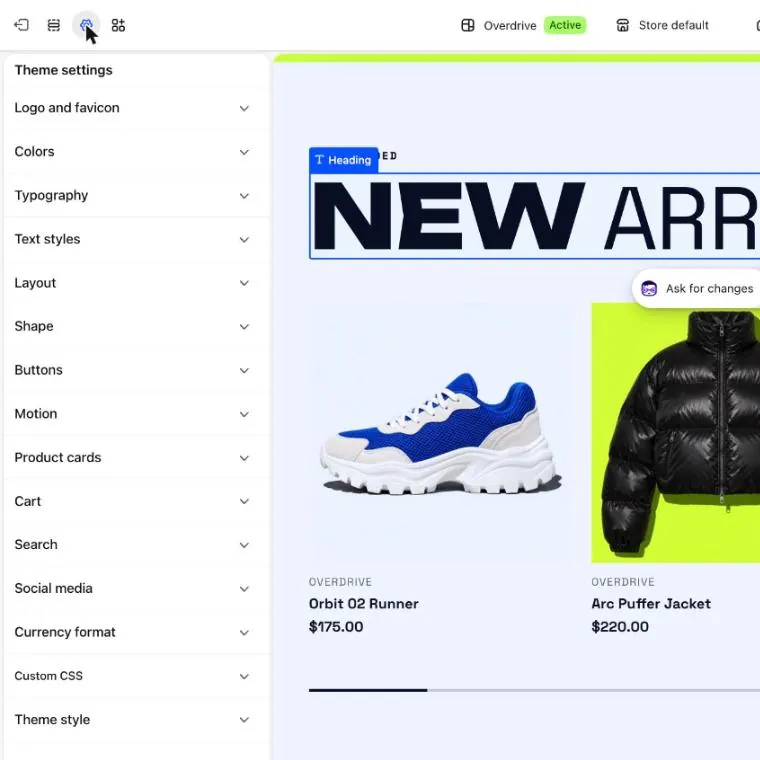
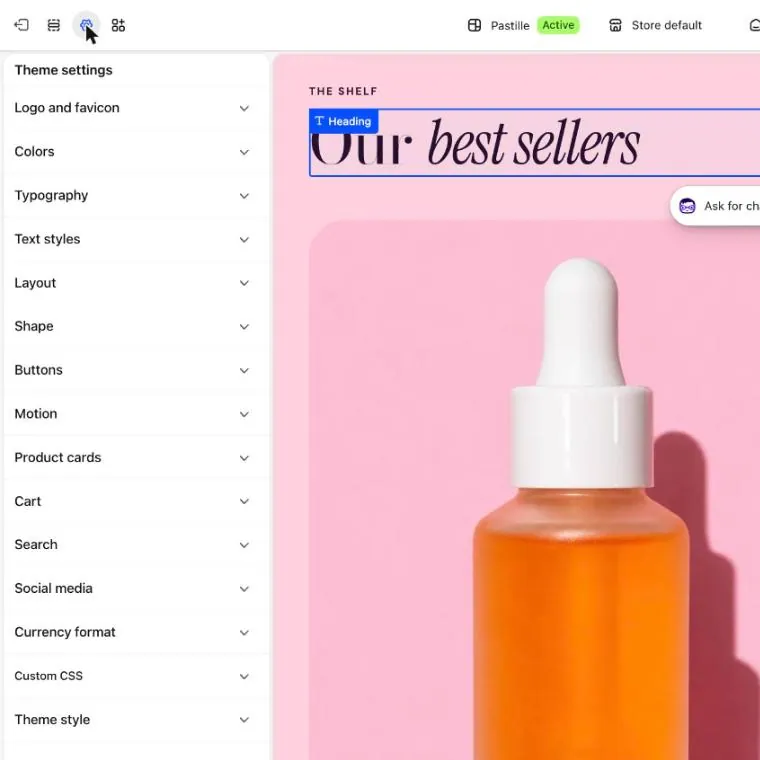
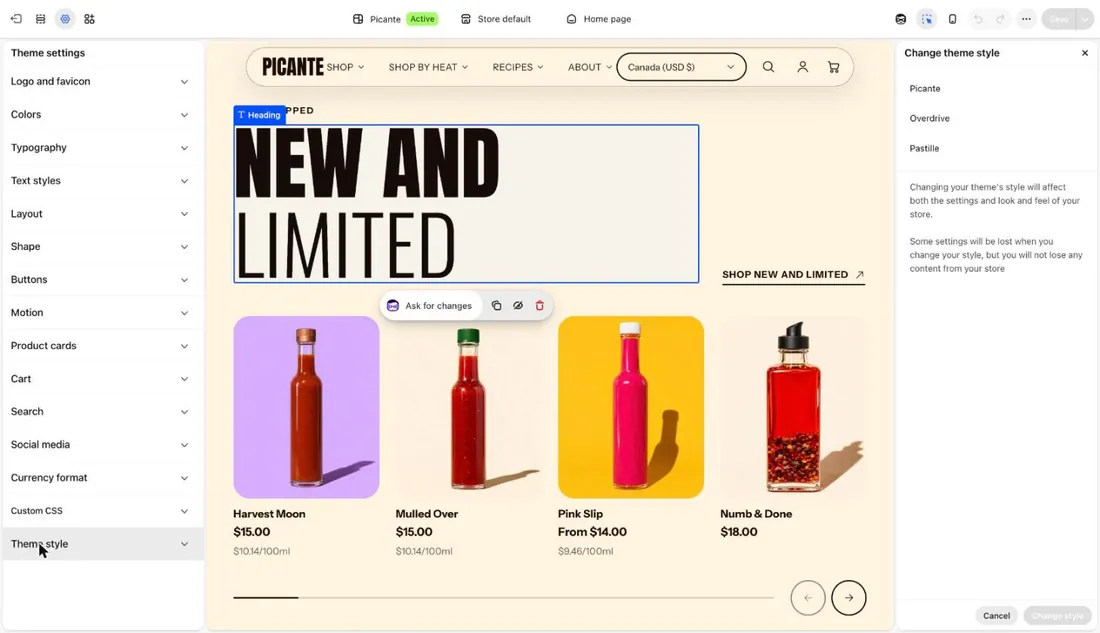
- Select Theme style (marker 1).
- Select Picante, Overdrive or Pastille (marker 2).
- Read Shopify’s note (marker 3). Some settings are lost, but none of your store content is.
- Select Change style.
- Look at your home page, a product and the cart. Compare them with your live store.
- Happy with it? Select Save, then publish the copy. Not happy? Do not publish it. Your live store stays the same.
Corners and outlines in your theme
Section titled “Corners and outlines in your theme”You are looking at the Picante theme. Change it with the Theme switch in the top bar.
Picante shape
- Button corners: 40 px
- Card corners: 24 px
- Field corners: 40 px
- Outline thickness: 2 px
Overdrive shape
- Button corners: 0 px
- Card corners: 0 px
- Field corners: 0 px
- Outline thickness: 3 px
Pastille shape
- Button corners: 40 px
- Card corners: 40 px
- Field corners: 40 px
- Outline thickness: 1 px
Good to know
Section titled “Good to know”- Not sure which theme to pick? See Pick a theme for pictures and colors.
- Choose your theme first. Colors and fonts you set earlier may change.
- Shopify decides what carries over. That is why you compare against the copy.