Turn animation up or down
Choose how much your store moves, from none at all to the full Picante effect.
Set the motion
Section titled “Set the motion”- Select the Theme settings icon at the top left of the editor.
- Select Motion (marker 1).
- Under Motion level (marker 2), choose None, Subtle or Bold. None turns animation off. Subtle is gentler. Bold is the full effect.
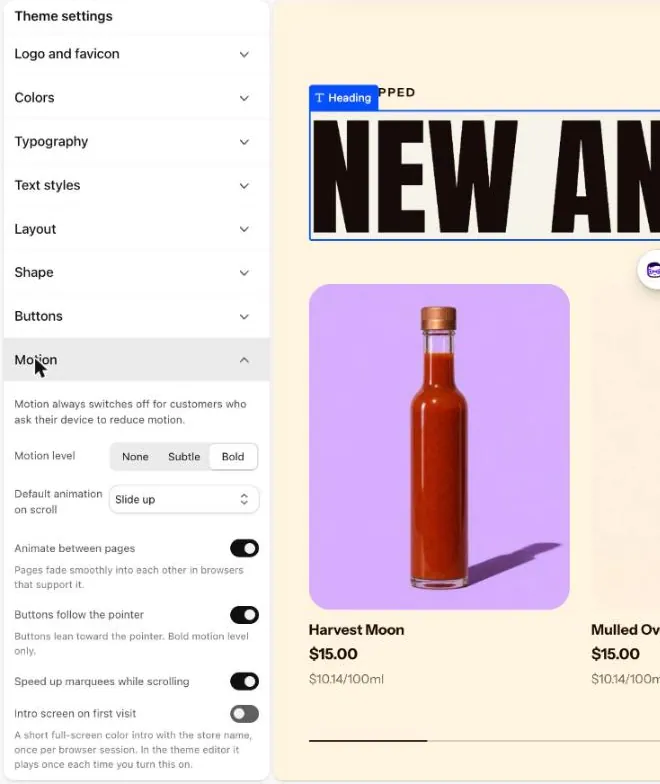
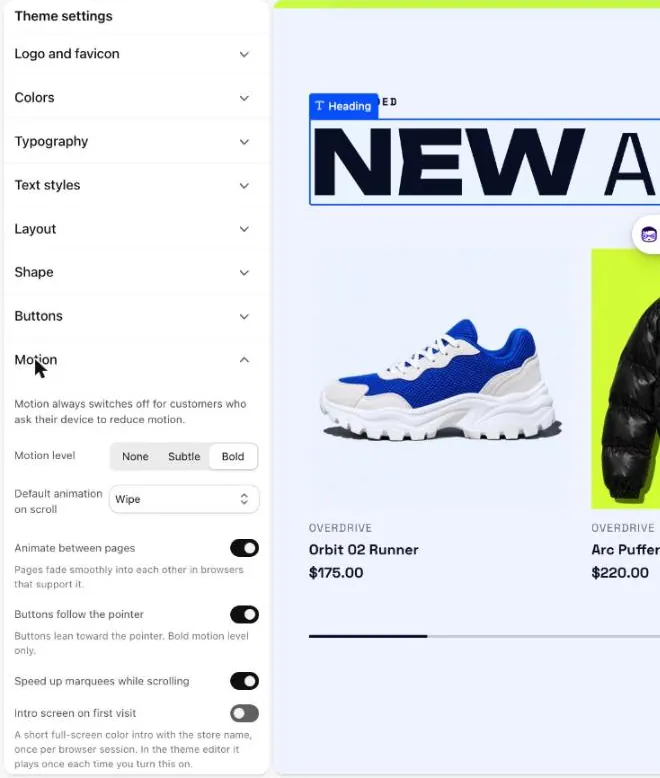
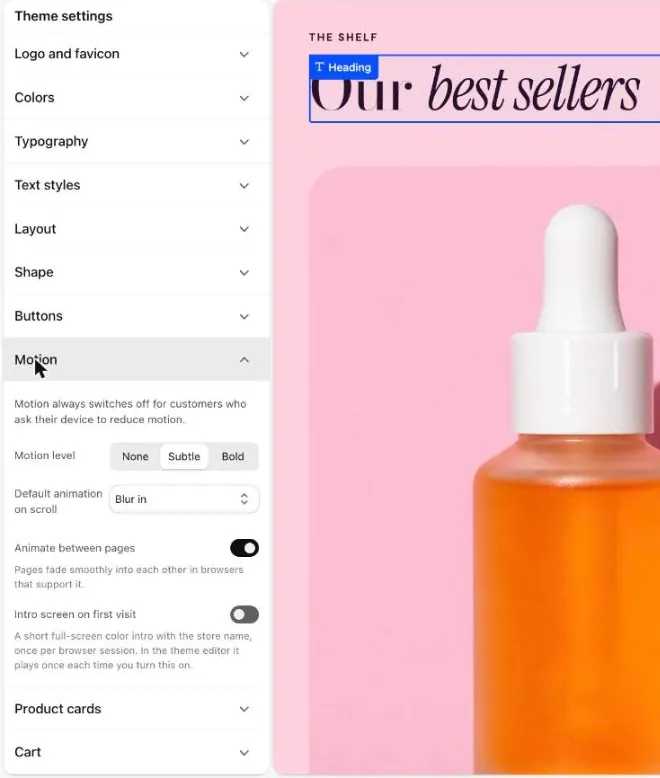
- Under Default animation on scroll (marker 3), choose how content appears as people scroll. The choices are Fade, Slide up, Scale in, Wipe and Blur in.
- Turn on Intro screen on first visit (marker 4) for a short full-screen intro with your store name. It shows once per visit. In the editor, it plays each time you turn it on.
- Scroll through your page in the preview to check it.
- Select Save.
Motion in your theme
Section titled “Motion in your theme”You are looking at the Picante theme. Change it with the Theme switch in the top bar.
Picante motion
- Motion level: Bold
- Default animation on scroll: Slide up
Overdrive motion
- Motion level: Bold
- Default animation on scroll: Wipe
Pastille motion
- Motion level: Subtle
- Default animation on scroll: Blur in
Good to know
Section titled “Good to know”- Motion always switches off for customers who ask their device to reduce motion. You do not need to set anything.
- At None, most other motion settings are hidden. Buttons follow the pointer and Speed up marquees while scrolling show only at Bold.
- Many sections have their own Animation on scroll setting under Section style. Choose None to stop one section from moving.
- Bold suits a loud, playful store. Try Subtle for a calmer feel.
See every setting: Motion.