Before and after section
Draggable before / after image comparison, horizontal or vertical.
The same section in the three themes:
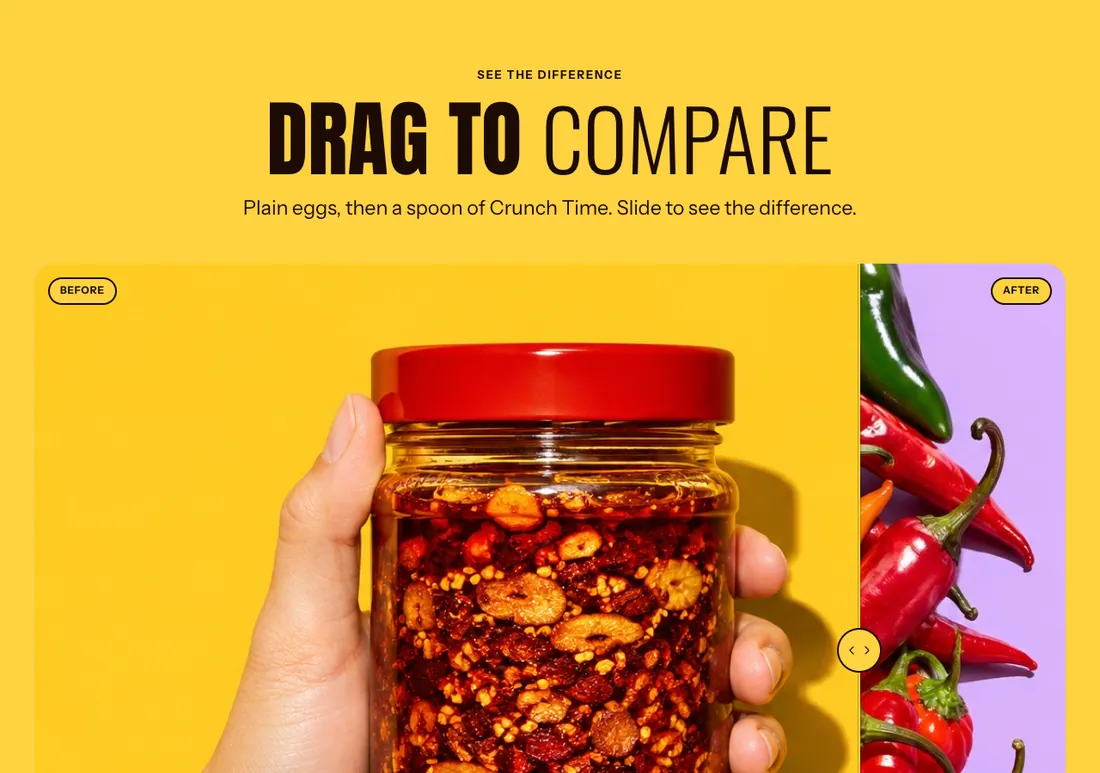
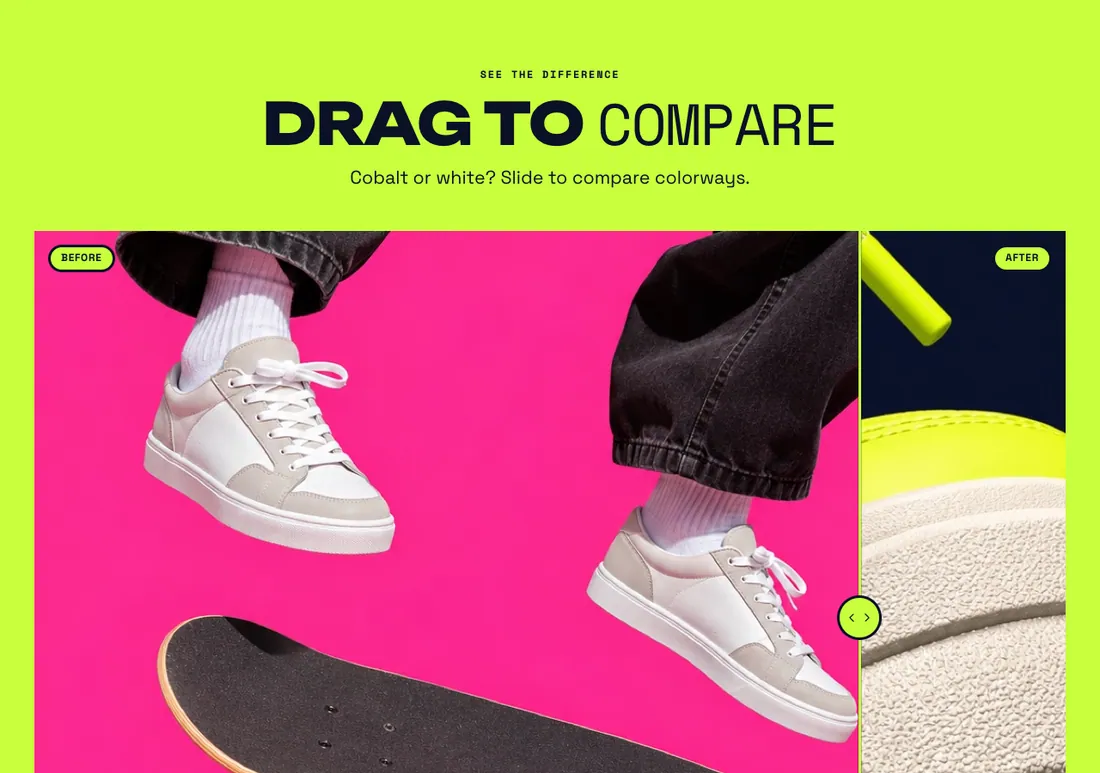
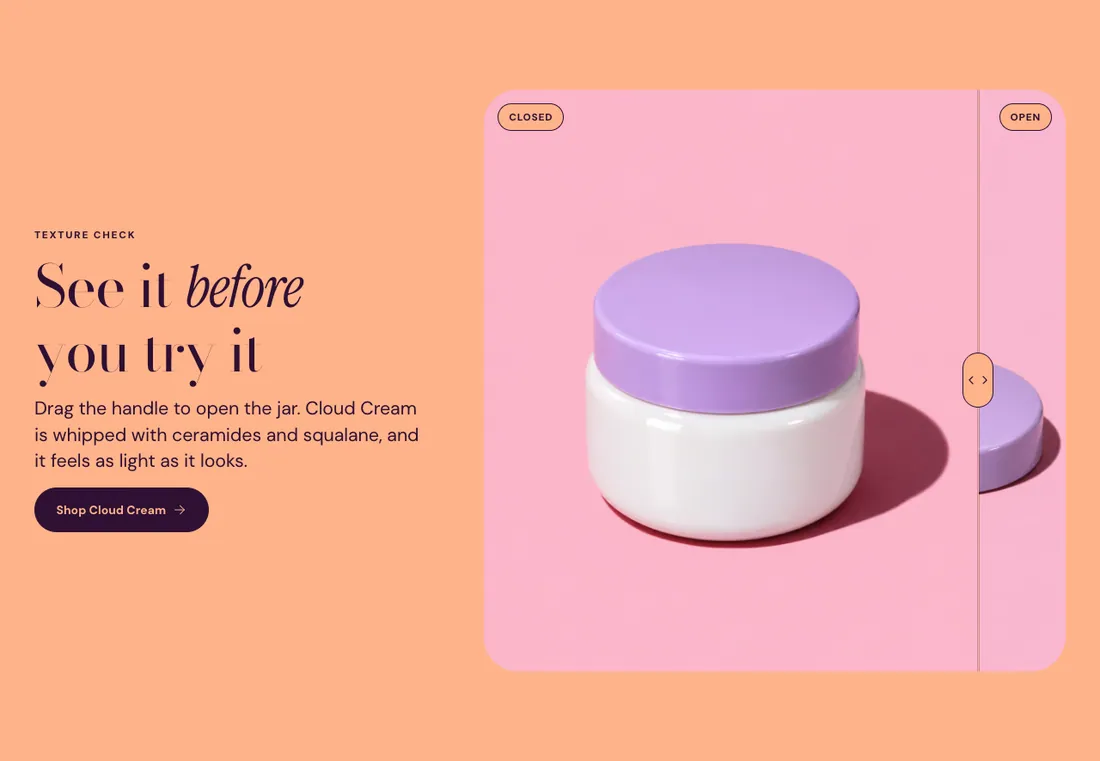
Where to find it: In the theme editor, choose Add section on any template, then pick Before and after.
When you add this section, you can start from these presets: Before and after, Before and after, with text.
Settings
Section titled “Settings”Images
Section titled “Images”| Setting | Type | Default | Options | Notes |
|---|---|---|---|---|
| Before image | Image | |||
| Before label | Text | Before | ||
| After image | Image | |||
| After label | Text | After | ||
| Image ratio | Select | Landscape (4:3) | Adapt to image, Portrait (4:5), Square (1:1), Landscape (4:3), Wide (16:9) |
Comparison handle
Section titled “Comparison handle”| Setting | Type | Default | Options | Notes |
|---|---|---|---|---|
| Direction | Select | Horizontal | Horizontal, Vertical | |
| Starting position | Slider | 50 % | 10 to 90 %, step 5 | |
| Handle style | Select | Circle | Circle, Pill, Accent color | |
| Sweep the handle on scroll | Checkbox | On | Moves the handle once when the section comes into view, so customers know they can drag it. |
Layout
Section titled “Layout”| Setting | Type | Default | Options | Notes |
|---|---|---|---|---|
| Layout | Select | Text above | Text above, Image left, Image right | |
| Alignment | Select | Center | Left, Center, Right |
Section style
Section titled “Section style”| Setting | Type | Default | Options | Notes |
|---|---|---|---|---|
| Color scheme | Color scheme | Scheme 4 | ||
| Layout width | Select | Page width | Page width, Full width | |
| Animation on scroll | Select | Theme default | Theme default, None, Fade, Slide up, Scale in, Wipe, Blur in | |
| Top padding | Slider | 80 px | 0 to 200 px, step 8 | |
| Bottom padding | Slider | 80 px | 0 to 200 px, step 8 |
Blocks
Section titled “Blocks”You can also add any theme block (see Blocks) and app blocks to this section.