Blog posts section
Latest articles as a grid, offset layout or carousel.
The same section in the three themes:
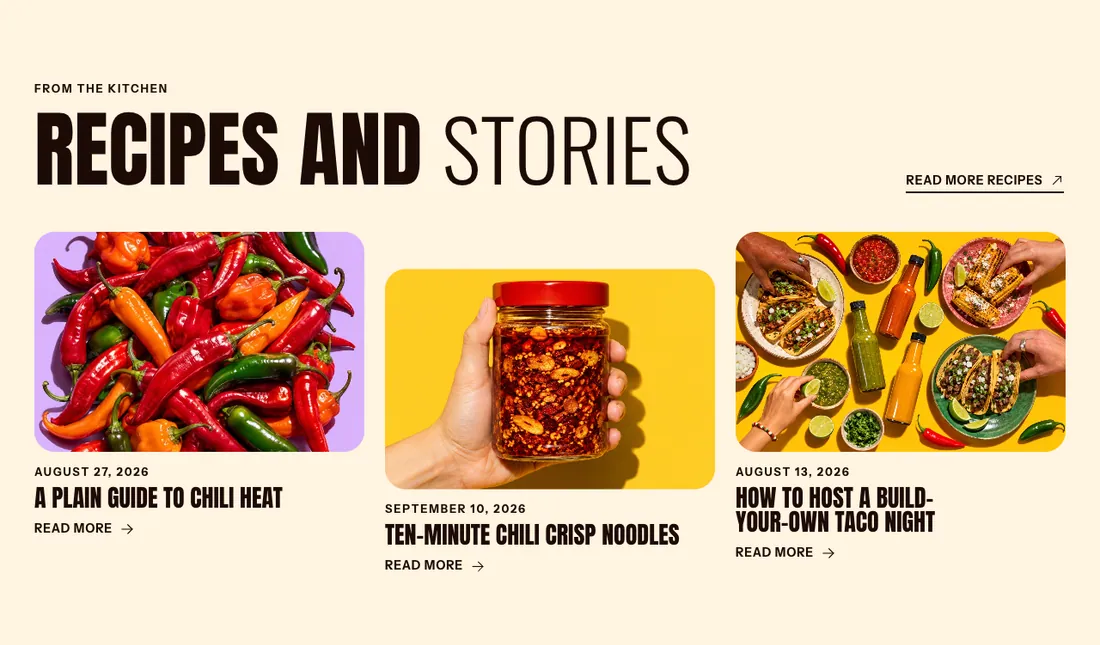
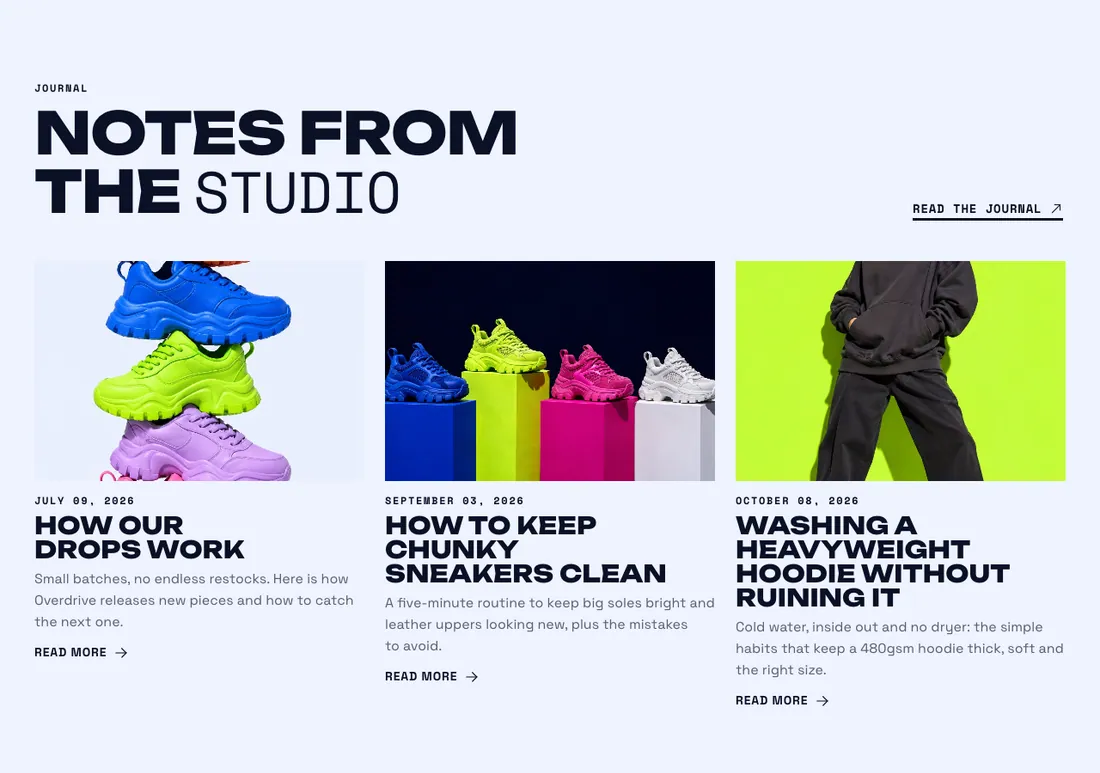
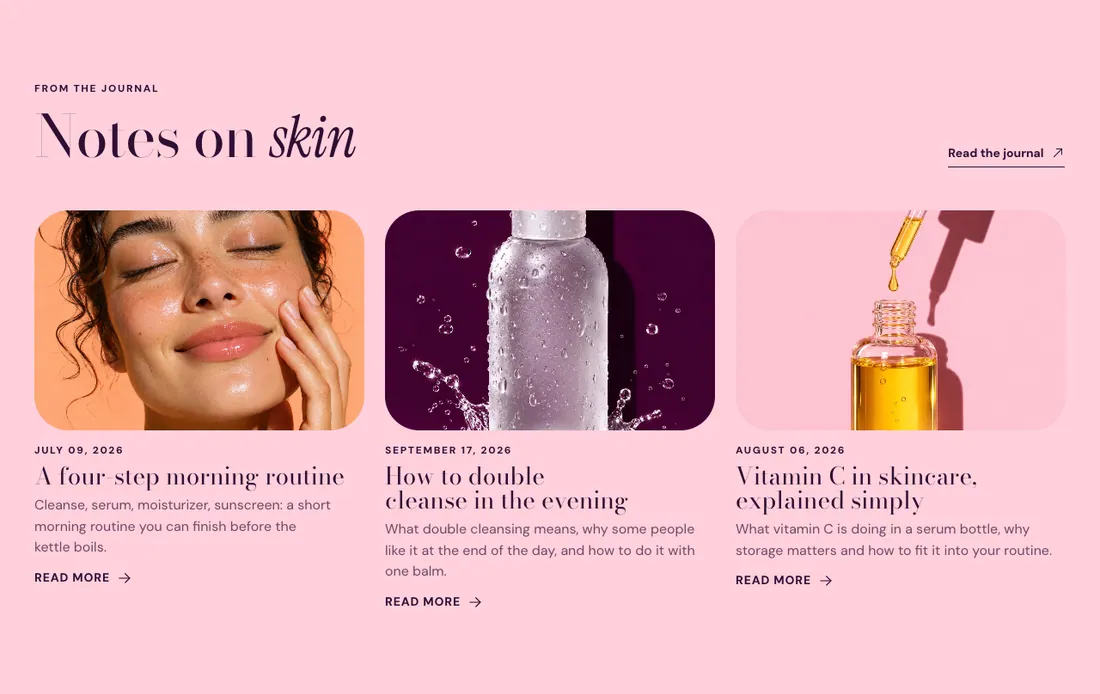
Where to find it: In the theme editor, choose Add section on any template, then pick Blog posts.
The heading area is a static block named Section header. Select it in the section sidebar to edit the eyebrow, heading, text and buttons, or to restyle or reorder them.
When you add this section, it starts from the Blog posts preset.
Settings
Section titled “Settings”| Setting | Type | Default | Options | Notes |
|---|---|---|---|---|
| Blog | Blog |
Layout
Section titled “Layout”| Setting | Type | Default | Options | Notes |
|---|---|---|---|---|
| Layout | Select | Staggered grid | Grid, Staggered grid, Carousel | |
| Number to show | Slider | 3 | 2 to 12, step 1 | |
| Columns on desktop | Slider | 3 | 2 to 4, step 1 | |
| Show arrows | Checkbox | On | Shown when Layout is Carousel. | |
| Show date | Checkbox | On | ||
| Show excerpt | Checkbox | Off | ||
| Show author | Checkbox | On | ||
| Show comment count | Checkbox | On | Shows only for blogs that accept comments. | |
| Show link to the blog | Checkbox | On | ||
| Button label | Text | View all posts | Shown when Show link to the blog is on. |
Section style
Section titled “Section style”| Setting | Type | Default | Options | Notes |
|---|---|---|---|---|
| Color scheme | Color scheme | Scheme 4 | ||
| Layout width | Select | Page width | Page width, Full width | |
| Animation on scroll | Select | Theme default | Theme default, None, Fade, Slide up, Scale in, Wipe, Blur in | |
| Top padding | Slider | 80 px | 0 to 200 px, step 8 | |
| Bottom padding | Slider | 80 px | 0 to 200 px, step 8 |
Blocks
Section titled “Blocks”Add, reorder, duplicate or remove these blocks in the section sidebar: Section header.
Section header block settings
Section titled “Section header block settings”| Setting | Type | Default | Options | Notes |
|---|---|---|---|---|
| Layout | Select | Stacked | Stacked, Split: content left, button right | |
| Alignment | Select | Left | Left, Center, Right | Shown when Layout is Stacked. |
| Max width | Select | None | None, Narrow, Normal | |
| Gap | Slider | 12 px | 0 to 64 px, step 4 | |
| Space below | Slider | 48 px | 0 to 120 px, step 4 | |
| Animation on scroll | Select | None | Theme default, None, Fade, Slide up, Scale in, Wipe, Blur in |