Edit your home page
Add, move, hide and delete the sections of your home page, using the Shopify theme editor.
Open the editor
Section titled “Open the editor”- In your Shopify admin, select Online Store (marker 1).
- Next to your live theme, select Edit theme (marker 2).
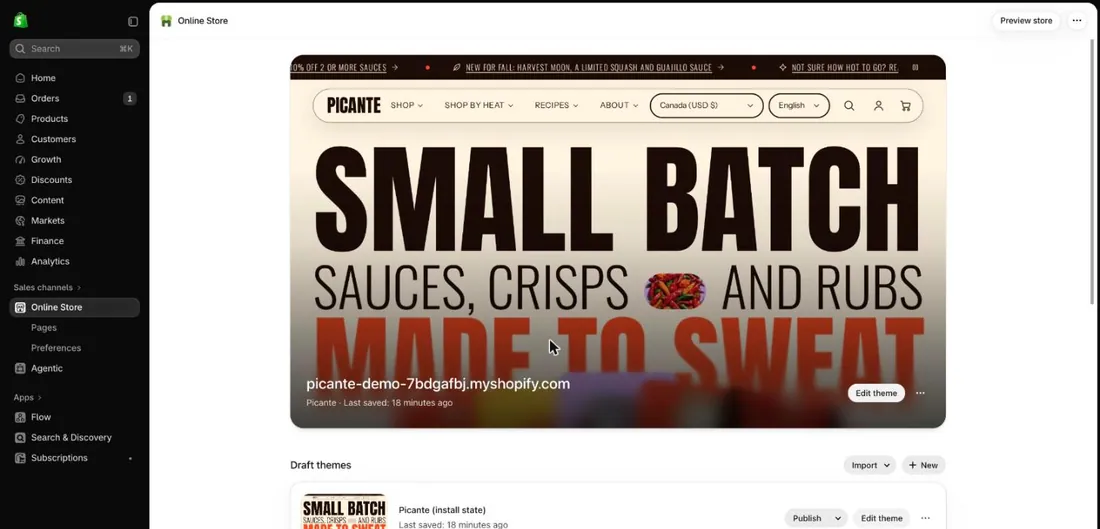
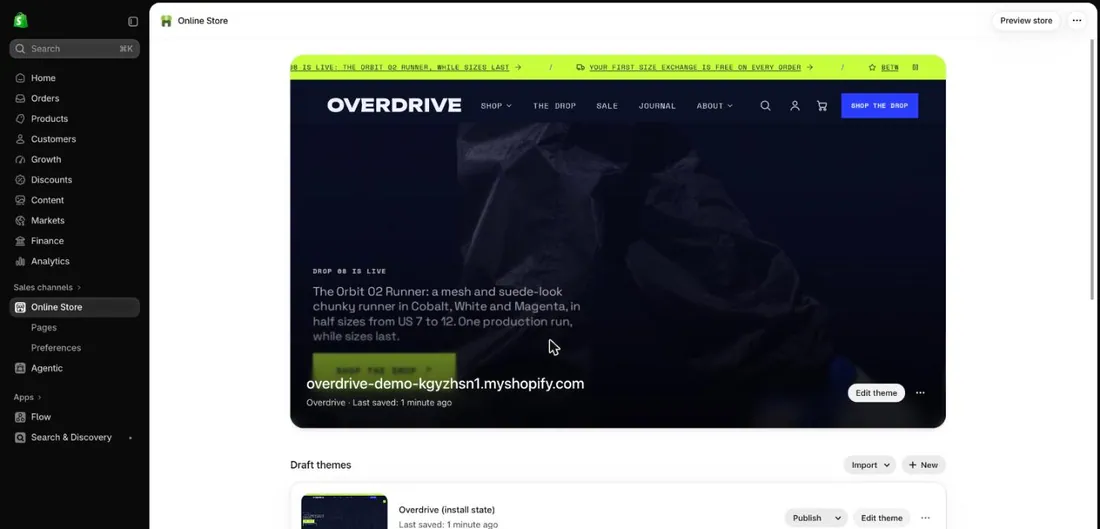
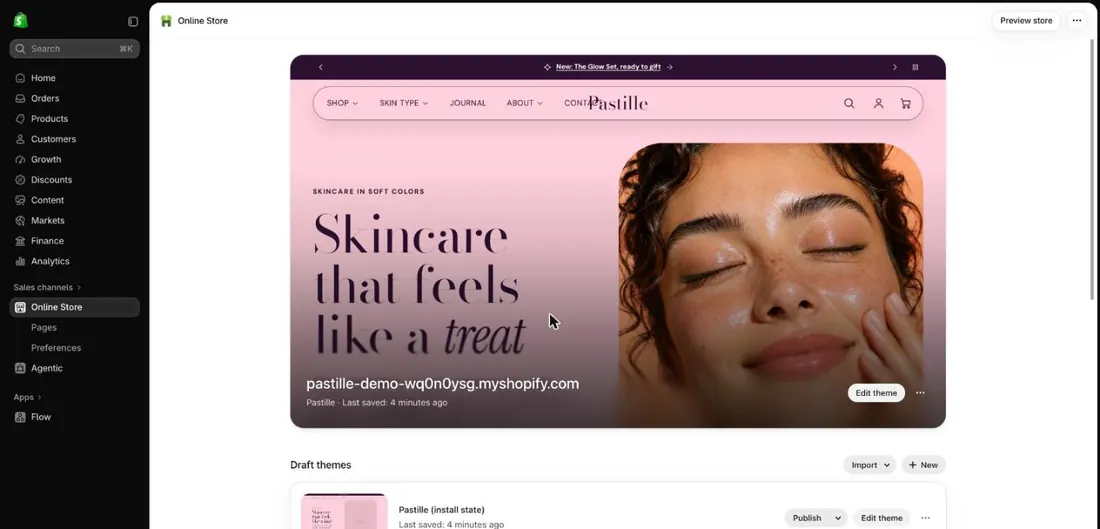
- Find the page picker at the top (marker 3). It should say Home page.
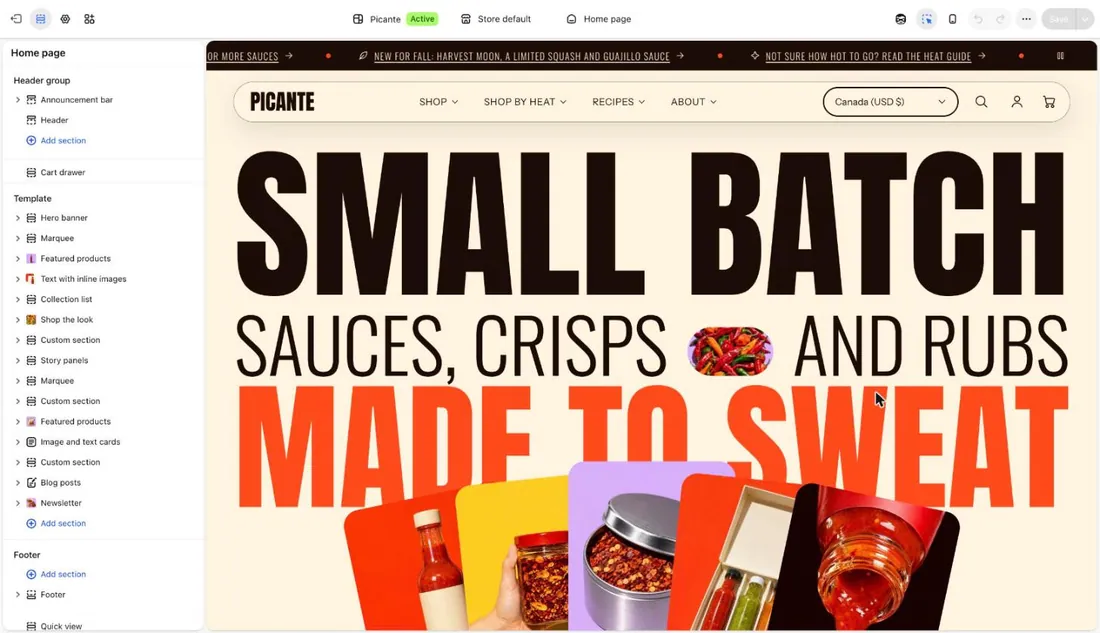
- Look at the list on the left (marker 1). Each row is a section, one band of your page.
- Look at the preview (marker 2). It shows your page as customers see it.
Add a section
Section titled “Add a section”- Under Template, select Add section (marker 1).
- Type a word in the search box (marker 2), or scroll the list.
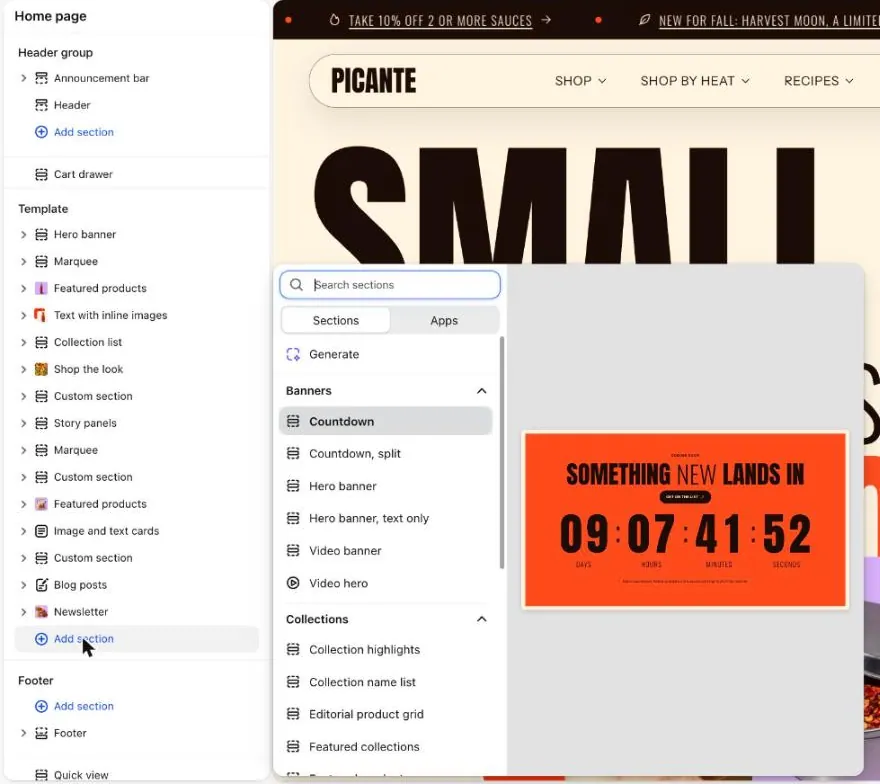
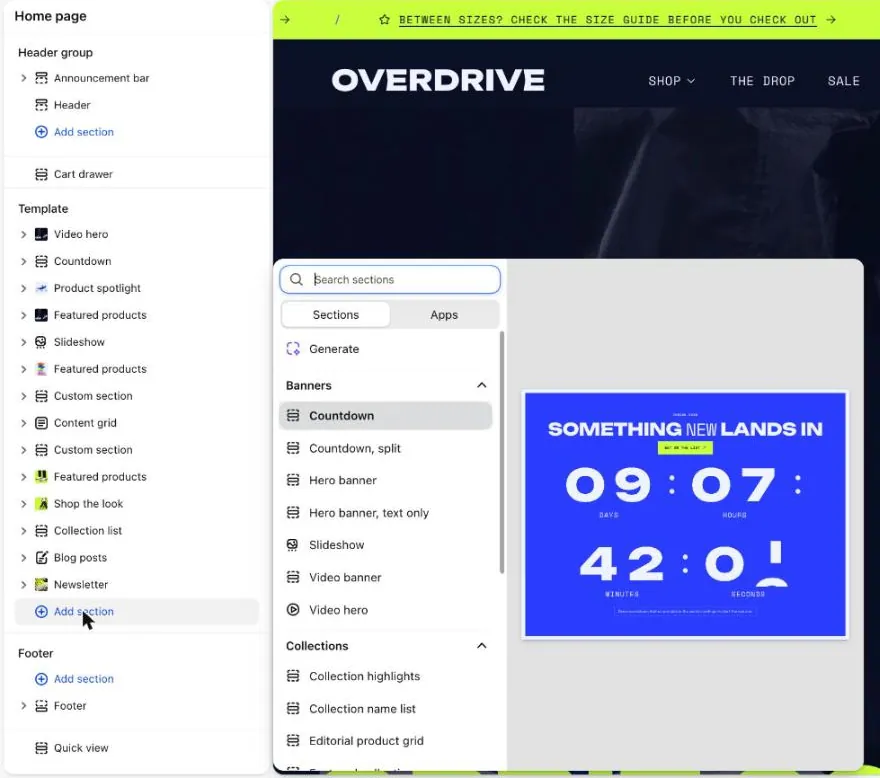
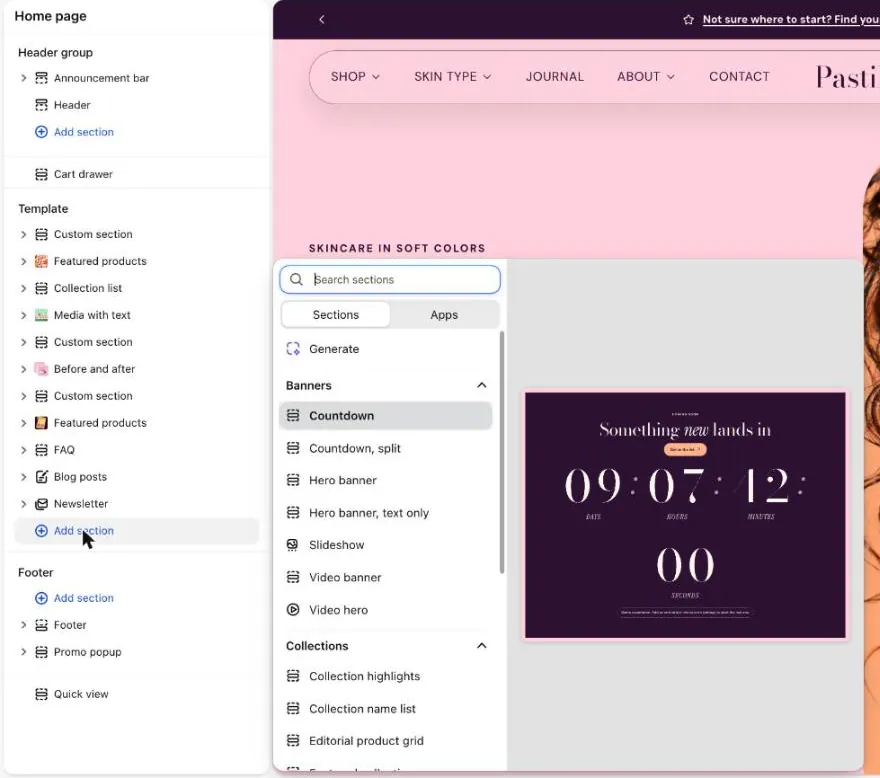
- Point at a section name in the list (marker 3). A picture of it shows beside the list.
- Select the section you want. It joins your page.
Open a section and change it
Section titled “Open a section and change it”- In the left list, select a section name, such as Hero banner (marker 1).
- Look at its blocks (marker 2). A block is one piece inside a section, like a heading or a button.
- Change any setting on the right (marker 3).
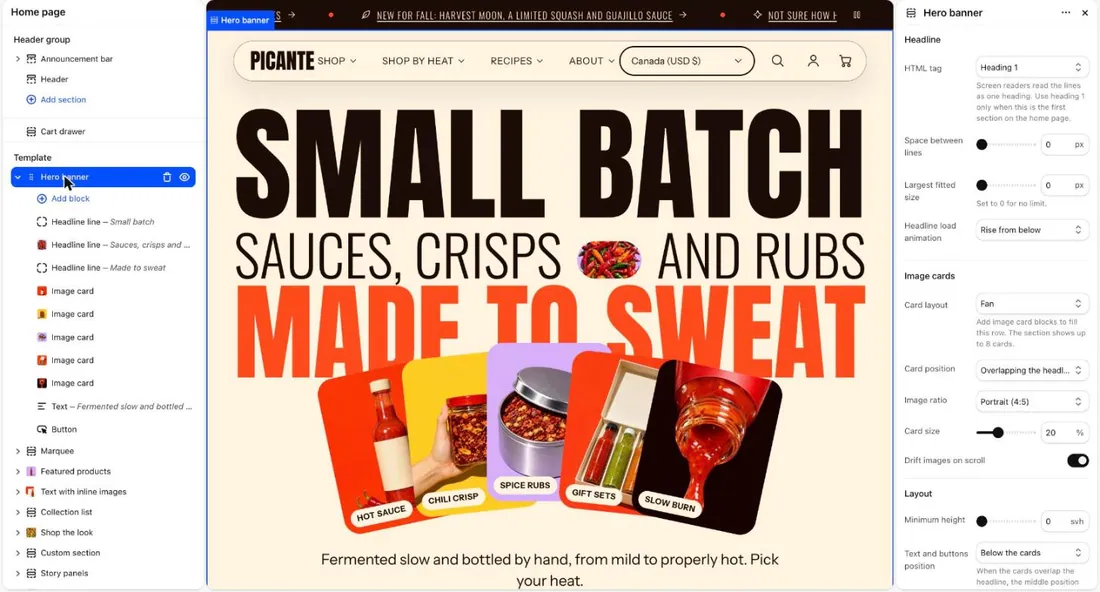
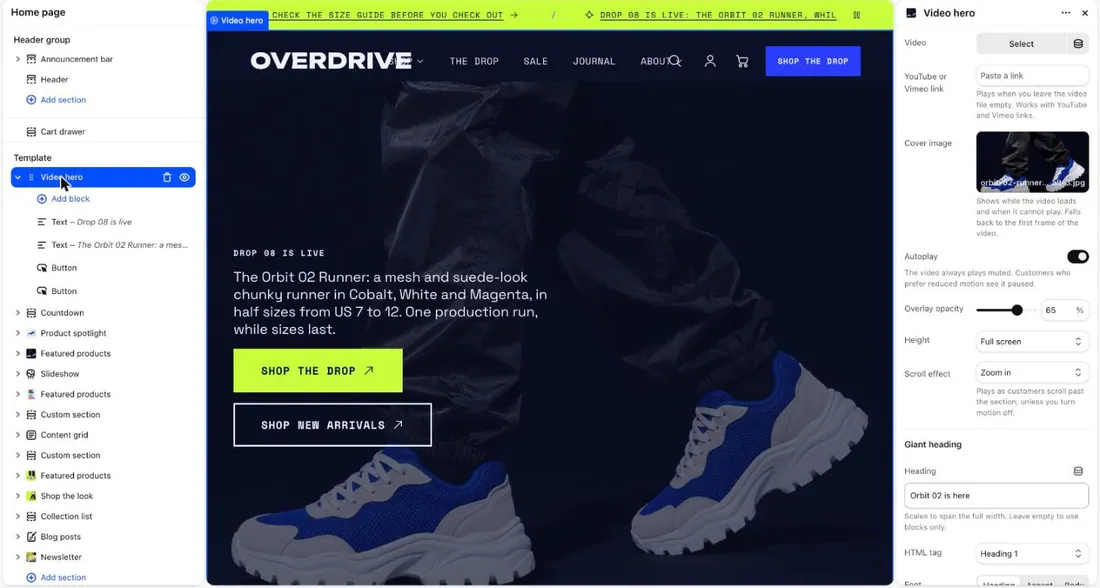
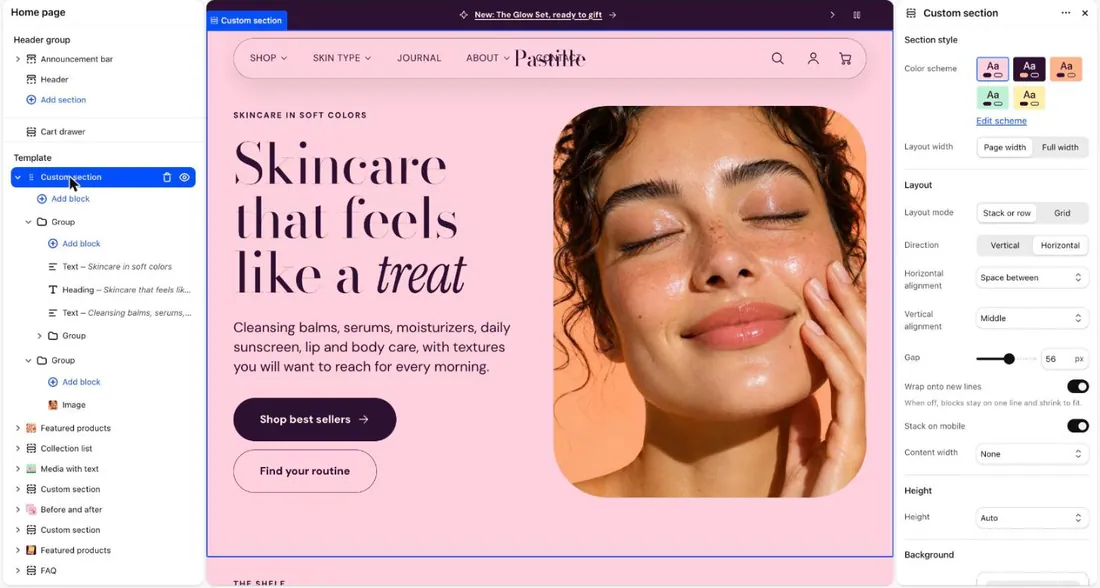
- To add a piece, select Add block under the section name.
Move, hide or delete a section
Section titled “Move, hide or delete a section”- Point at a section name in the left list. A dotted handle, an eye and a bin appear (marker 4).
- To move the section, drag the dotted handle on the left of its name up or down.
- To hide the section, select the eye icon (marker 4). Customers stop seeing it.
- To show it again, select the eye icon again.
- To delete the section, select the bin icon (marker 4).
Save your work
Section titled “Save your work”- Select Save (marker 4) at the top right.
Your theme’s demo home page
Section titled “Your theme’s demo home page”You are looking at the Picante theme. Change it with the Theme switch in the top bar.
Picante home page, top to bottom
- Hero banner
- Marquee
- Featured products
- Text with inline images
- Collection list
- Shop the look
- Custom section
- Story panels
- Marquee
- Custom section
- Featured products
- Image and text cards
- Custom section
- Logo list
- Compare products
- Blog posts
- Newsletter
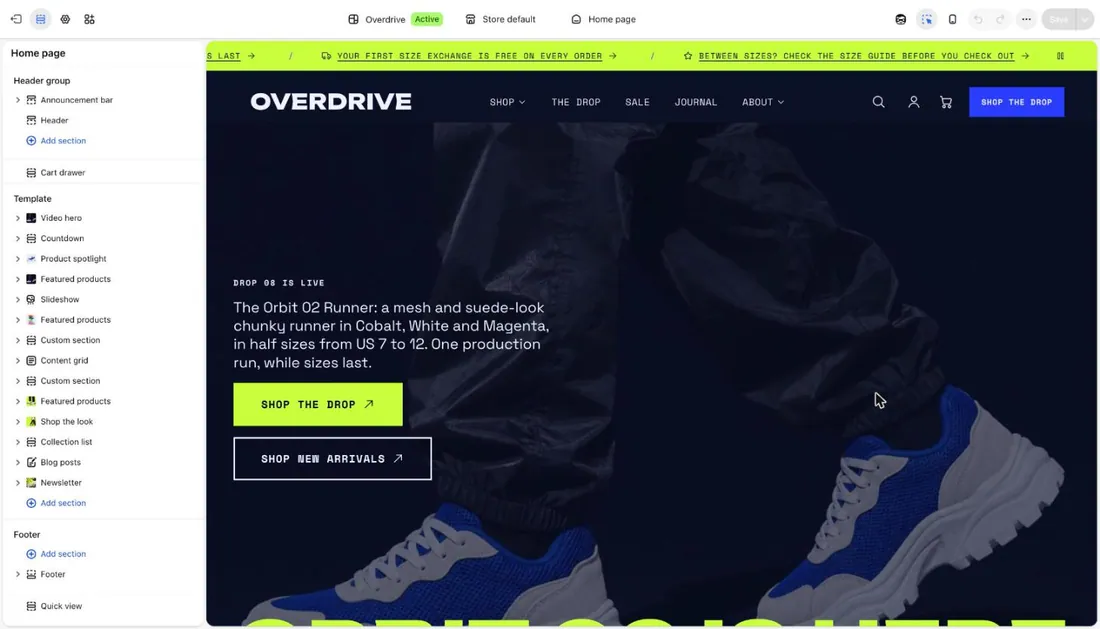
Overdrive home page, top to bottom
- Video hero
- Countdown
- Product spotlight
- Featured products
- Slideshow
- Featured products
- Custom section
- Content grid
- Custom section
- Featured products
- Shop the look
- Collection list
- Blog posts
- Newsletter
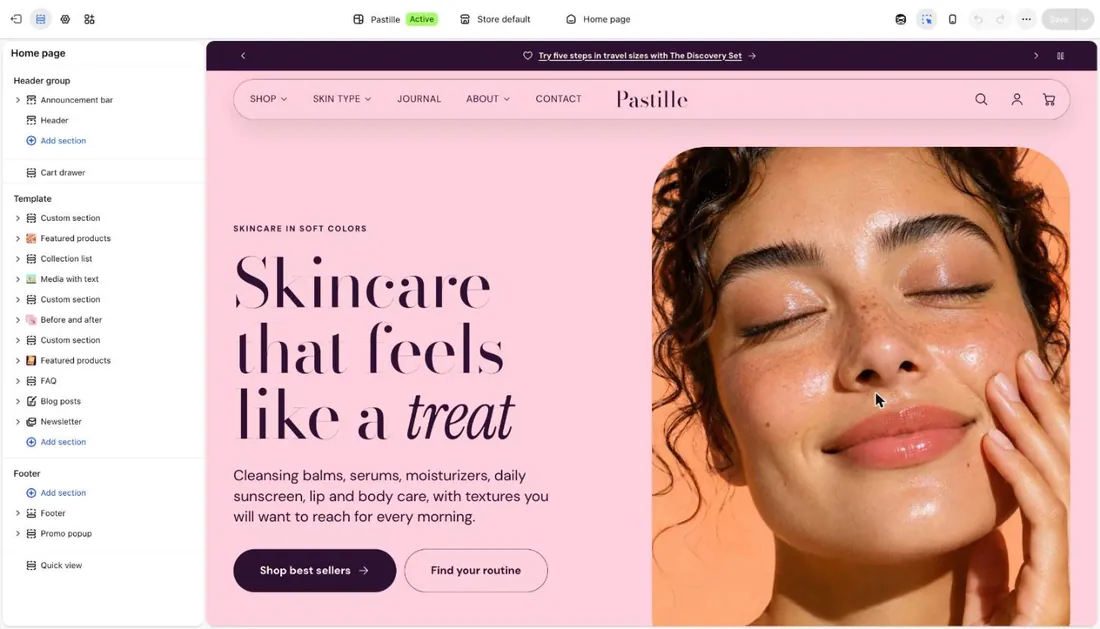
Pastille home page, top to bottom
- Custom section
- Featured products
- Collection list
- Media with text
- Custom section
- Before and after
- Custom section
- Featured products
- FAQ
- Blog posts
- Newsletter
Good to know
Section titled “Good to know”- Hiding keeps the section and its settings. Deleting removes them.
- Deleted a section by mistake? Select the undo arrow at the top of the editor right away.
- The Header group and Footer lists have their own Add section links. They work the same way.
- On the Add section panel, the Apps tab lists sections from apps you installed.
See every setting: Hero banner, Marquee and Featured products. Next, edit text and images.