Update the theme
Make a backup copy, read what changed, then update from your Themes page. Your live store keeps working until you publish.
- Read the release notes. They list what changed in each version.
- In your Shopify admin, select Online Store (marker 1).
- Select the three dots next to your live theme, then select Duplicate. This is your backup.
- Look for an update notice on your theme. Shopify shows it on this page when a new version is ready.
- Follow Shopify’s steps to update. You may get the new version as a draft copy.
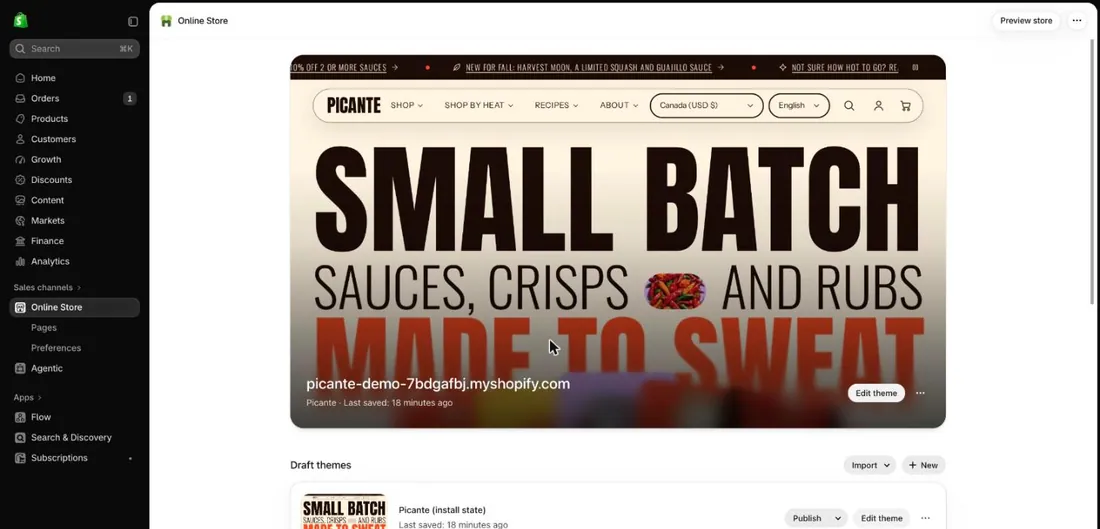
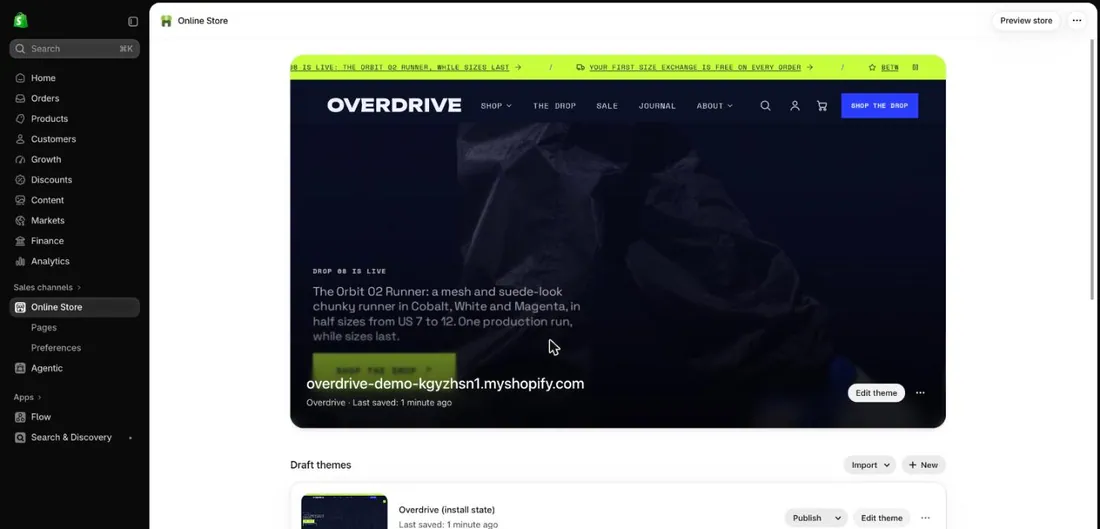
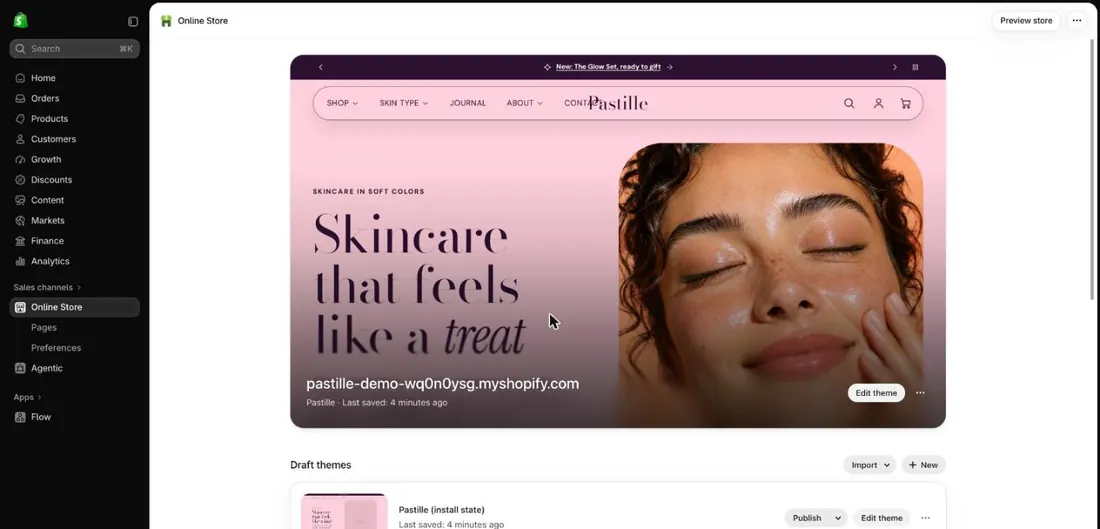
- Select Edit theme (marker 2) on the updated theme.
- Check your home page, a product page, the cart and your menus.
- Select Publish on the updated theme. If something looks wrong, publish your backup again.
Good to know
Section titled “Good to know”- Changes you make in the theme editor are usually kept. Check your logo, colors and menus anyway.
- Editing the theme’s code stops easy updates. Code edits are not supported.
- Need code changes? Duplicate your theme first, then ask a Shopify Partner.
- Something broke? See Troubleshooting.