Change your colors
A color scheme is a saved set of colors. Edit one, choose one for a section, or add your own.
Change the colors of a scheme
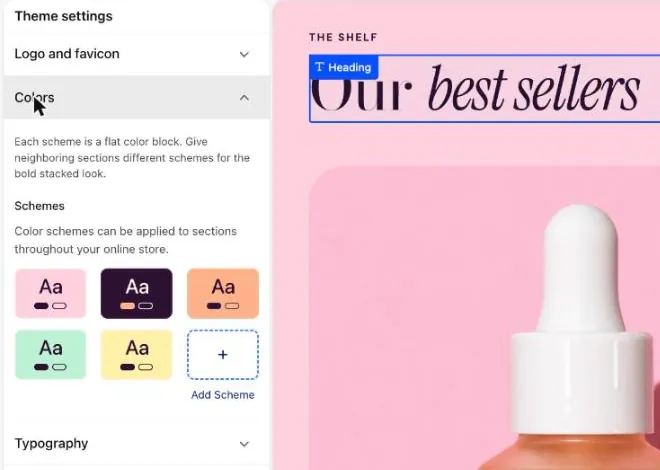
Section titled “Change the colors of a scheme”- Select the Theme settings icon (marker 1).
- Select Colors in the list (marker 2).
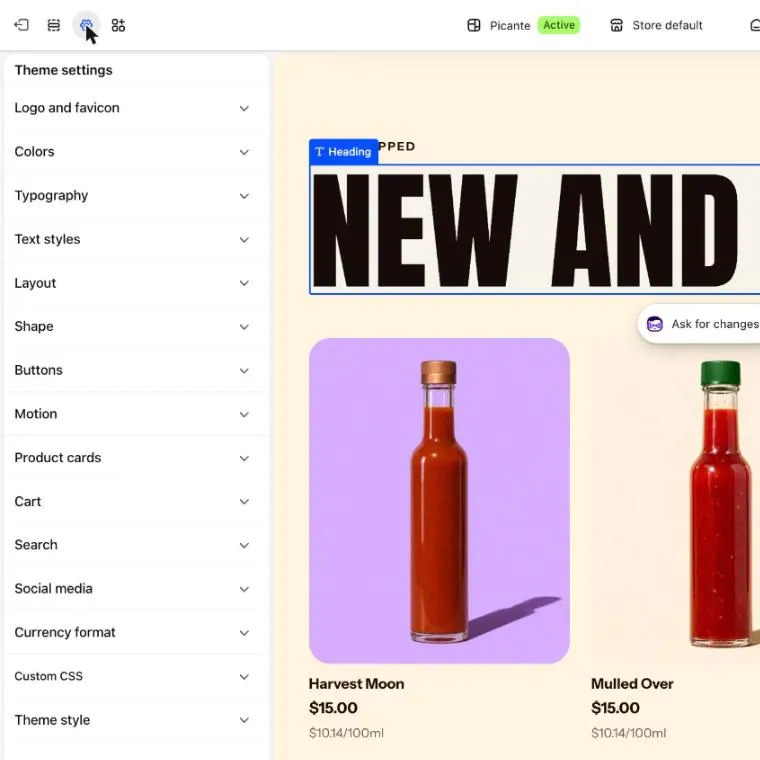
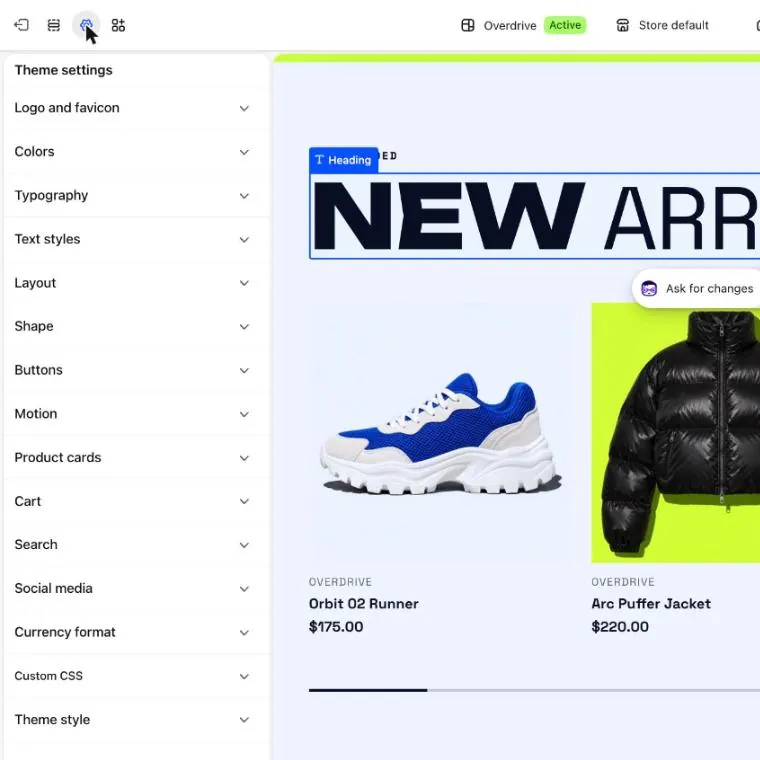
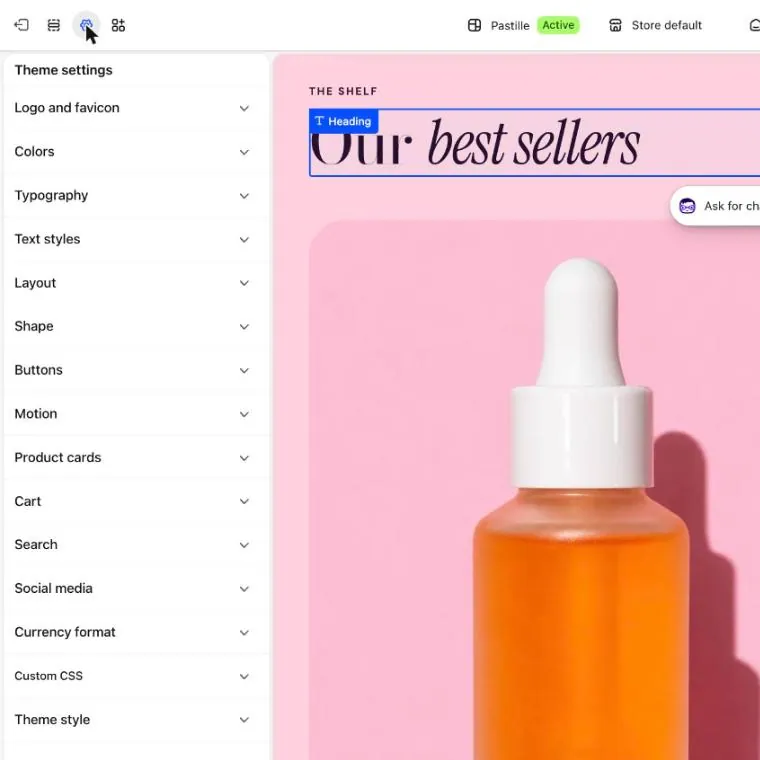
- Select the scheme you want to change (marker 2). Each small Aa tile is one scheme.
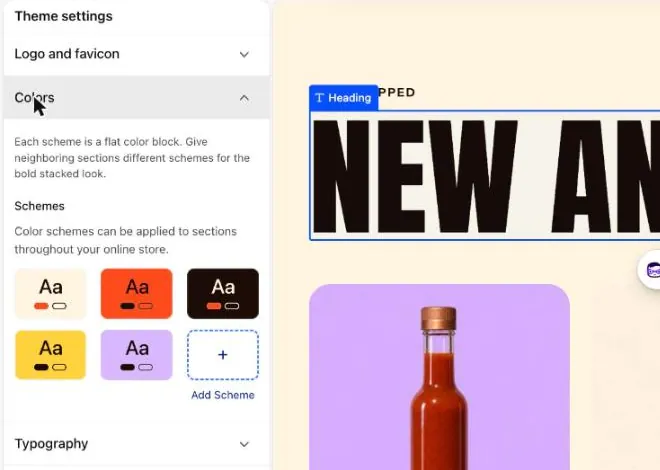

- Select the color box next to Background, then pick a new color.
- Do the same for Text, Accent, Text on accent, Button and Button label.
- Check the preview. Background is the section color. Text is its words. Button colors the buttons.
- Select Save.
Pick a scheme for a section
Section titled “Pick a scheme for a section”- Select the sections icon, just left of the Theme settings icon.
- Select a section in the list, such as Hero banner (marker 1).
- Scroll the settings on the right (marker 3) to Section style.
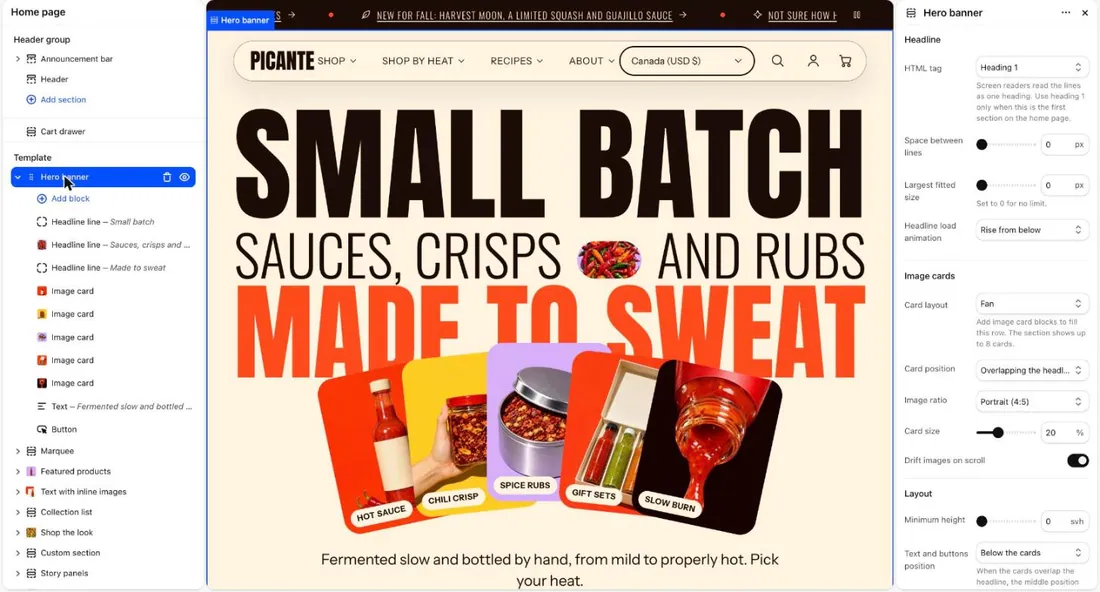
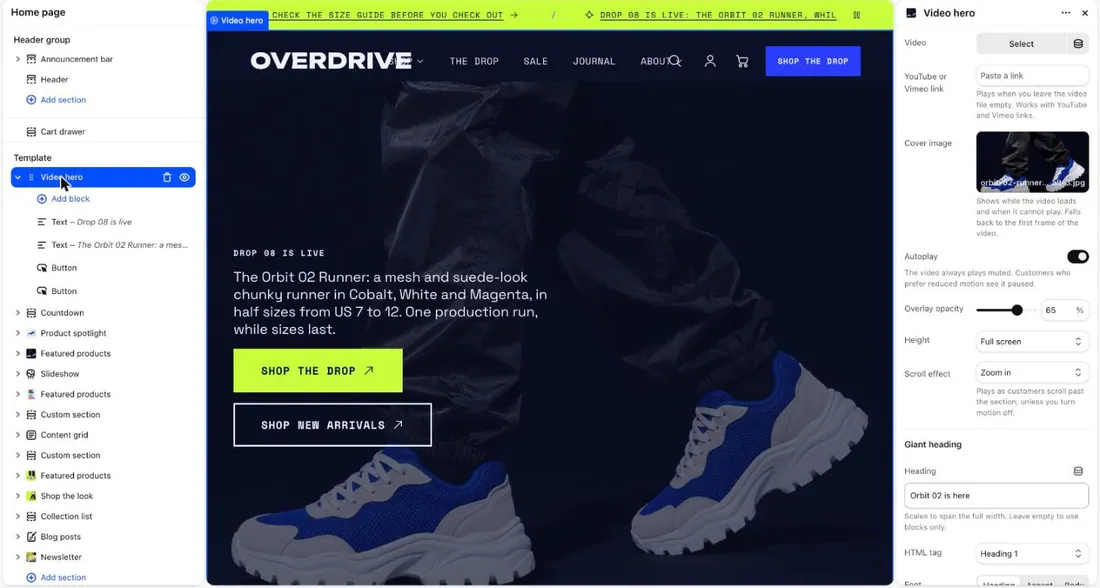

- Under Color scheme, select a tile. The section changes at once.
- Select Save.
Add a scheme
Section titled “Add a scheme”- Open Theme settings, then Colors.
- Select Add scheme (marker 3).
- Choose its colors, as in the first steps above.
- Select Save.
Colors in your theme
Section titled “Colors in your theme”You are looking at the Picante theme. Change it with the Theme switch in the top bar.
Picante colors
| Scheme | Background | Text | Accent | Button |
|---|---|---|---|---|
| Scheme 1 | #FFF4E0 | #1C0B06 | #FF4B1F | #FF4B1F |
| Scheme 2 | #FF4B1F | #1C0B06 | #FFF4E0 | #1C0B06 |
| Scheme 3 | #1C0B06 | #FFF4E0 | #FF4B1F | #FF4B1F |
| Scheme 4 | #FFD23F | #1C0B06 | #C4300A | #1C0B06 |
| Scheme 5 | #D9B8FF | #1C0B06 | #C4300A | #1C0B06 |
Overdrive colors
| Scheme | Background | Text | Accent | Button |
|---|---|---|---|---|
| Scheme 1 | #EEF3FF | #0B1026 | #2B3CFF | #2B3CFF |
| Scheme 2 | #2B3CFF | #EEF3FF | #C8FF3D | #C8FF3D |
| Scheme 3 | #0B1026 | #EEF3FF | #C8FF3D | #C8FF3D |
| Scheme 4 | #C8FF3D | #0B1026 | #2B3CFF | #0B1026 |
| Scheme 5 | #FF3DA5 | #0B1026 | #F4FFD9 | #0B1026 |
Pastille colors
| Scheme | Background | Text | Accent | Button |
|---|---|---|---|---|
| Scheme 1 | #FFD0DC | #2E1033 | #C2185B | #2E1033 |
| Scheme 2 | #2E1033 | #FFF7EE | #FFB38A | #FFB38A |
| Scheme 3 | #FFB38A | #2E1033 | #C2185B | #2E1033 |
| Scheme 4 | #BDF2D5 | #2E1033 | #0B6B5E | #2E1033 |
| Scheme 5 | #FFF0A8 | #2E1033 | #C2185B | #2E1033 |
Good to know
Section titled “Good to know”- Changing a scheme changes every section that uses it.
- Neighboring sections look best with different schemes. That gives Picante its bold stacked look.
- A block follows its section. To give one block its own scheme, turn off Inherit color scheme in that block.
- Keep text easy to read: light on dark, or dark on light. Accent and Text on accent adjust themselves. Check Text on Background and Button on Button label yourself with a free online contrast checker. Aim for 4.5 to 1.