Pairs well with and recommended
Suggest products that go with the one shoppers are viewing. Use the Pairs well with block, the Product recommendations row, or both.
Choose the matching products
Section titled “Choose the matching products”- In your Shopify admin, open the Search & Discovery app. Install it if you do not have it.
- Choose complementary products for each product. These are items that go with it, such as a sauce with chips.
- Save.
Set up the Pairs well with block
Section titled “Set up the Pairs well with block”- Open the theme editor.
- Select the page picker, then Products, then Default product.
- Select Product information (marker 1) in the left panel.
- Select Pairs well with in the list of blocks (marker 2).
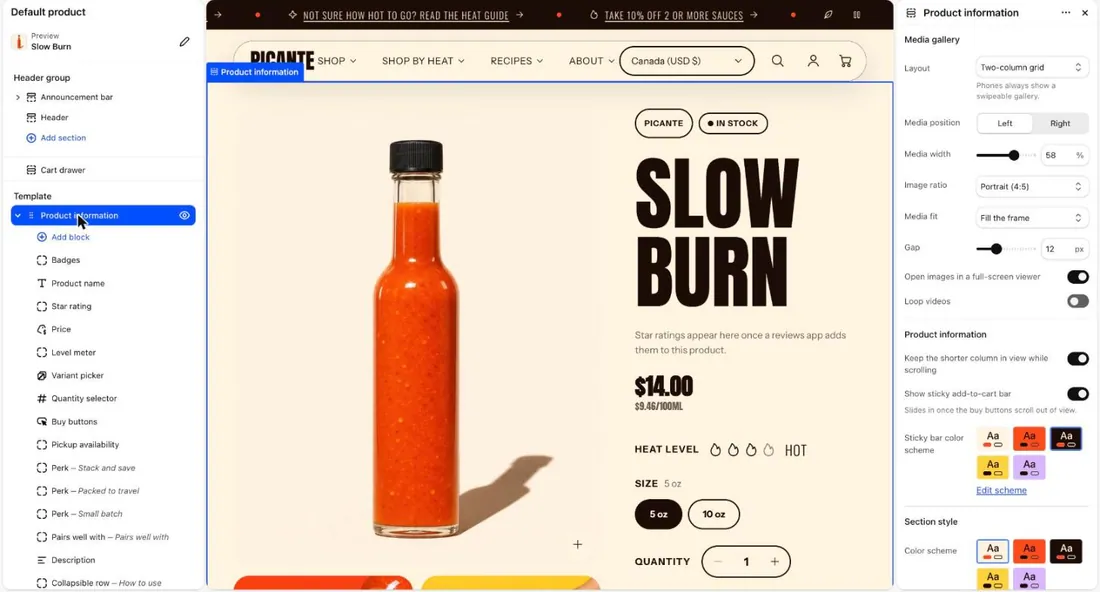
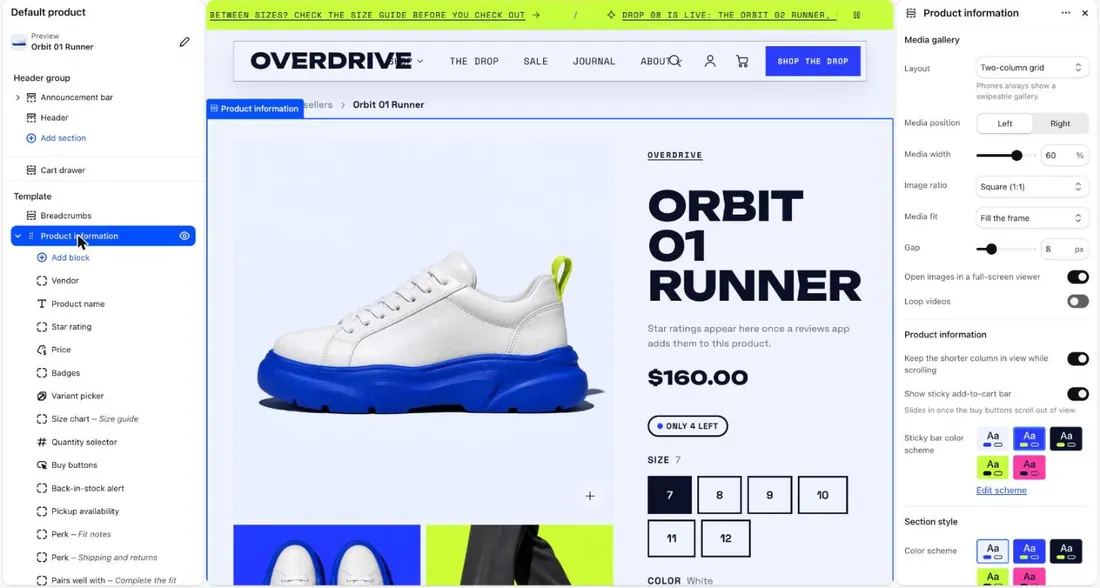
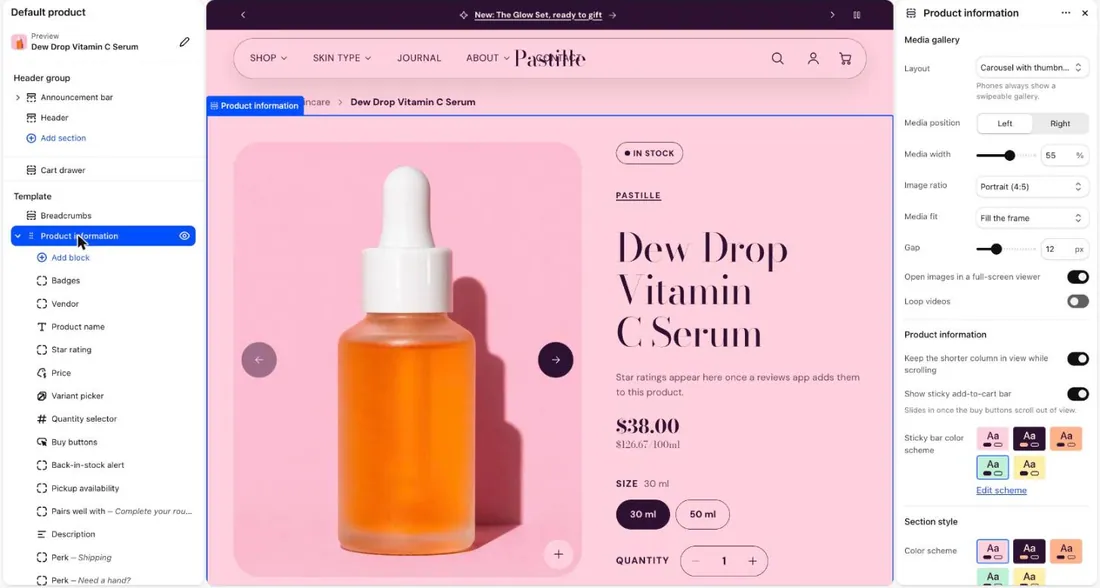
- Change the Heading.
- Move Products to show. You can show 1 to 6.
- Switch Show quick add button on or off. It lets shoppers add a product in one click.
Set up the Product recommendations row
Section titled “Set up the Product recommendations row”- Select Product recommendations in the left panel.
- Next to Type, choose Related products or Complementary products.
- Move Products to show. You can show 2 to 10.
- Under Layout, choose Grid or Carousel.
- Select Save.
Good to know
Section titled “Good to know”- The block stays empty until you choose matching products in the app.
- Shopify picks Related products. They improve as you get orders.
- The row hides itself when there is nothing to suggest.
- For cart suggestions, open the Cart section and change Suggestions.
See every setting: Product recommendations and Cart drawer.