Edit text and images
Change the words, buttons and pictures in any section. The steps below use the Featured products and Hero banner sections.
Change the small text above a heading
Section titled “Change the small text above a heading”- Open the theme editor on your home page. Steps are in Edit your home page.
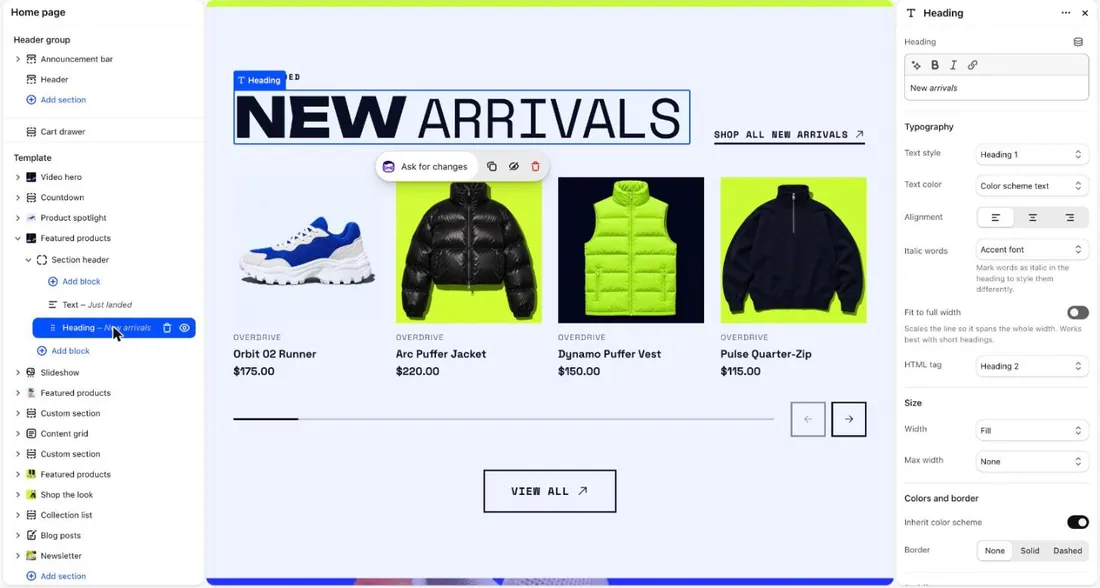
- In the left list, select Featured products.
- Select the arrow next to Section header (marker 1).
- Select the Text block (marker 2). It holds the small line above the heading.
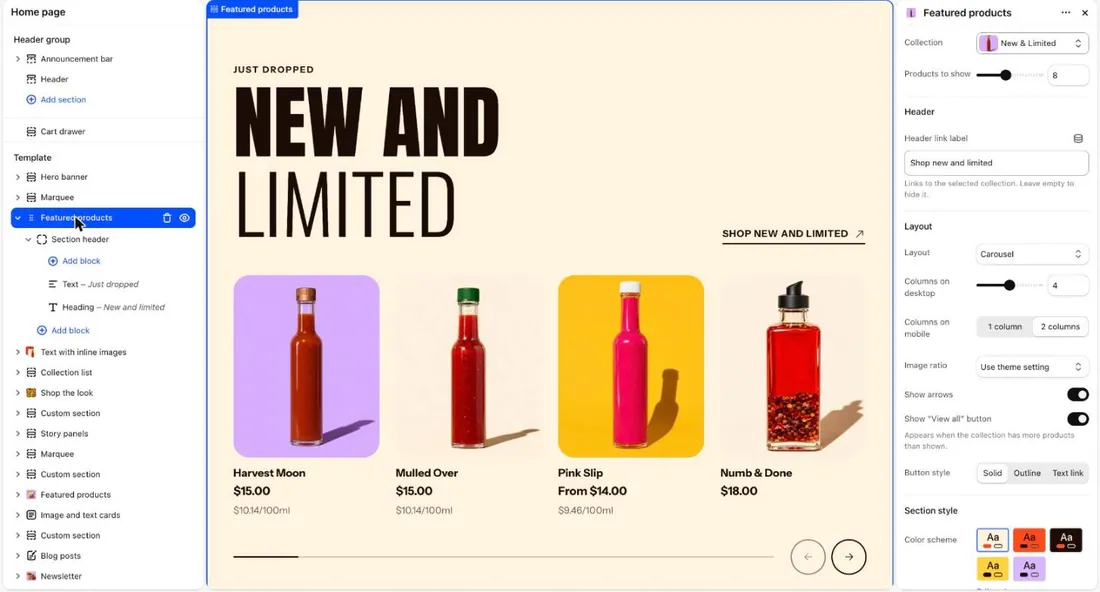
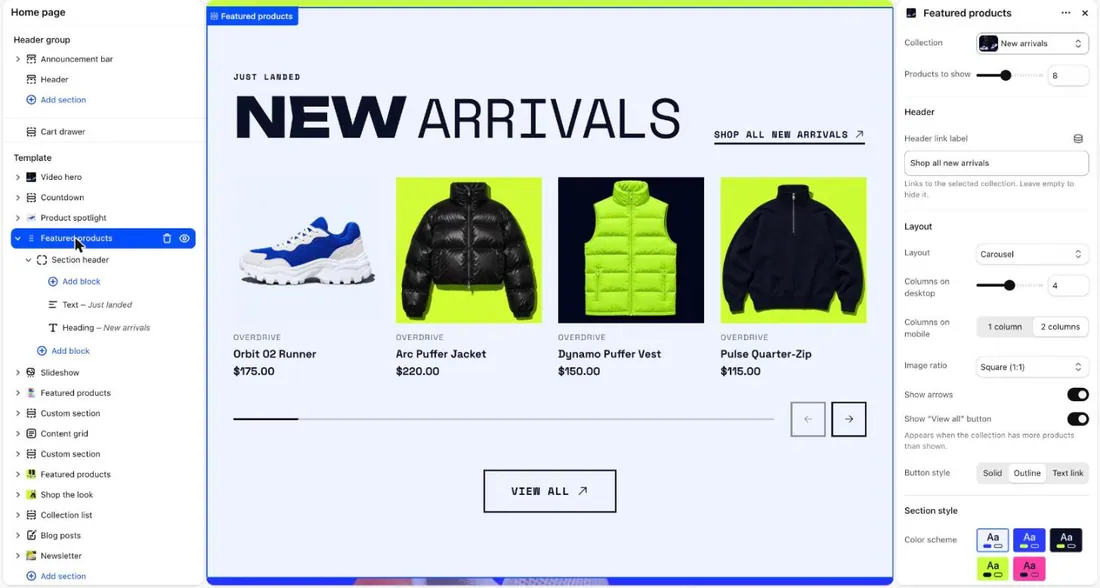
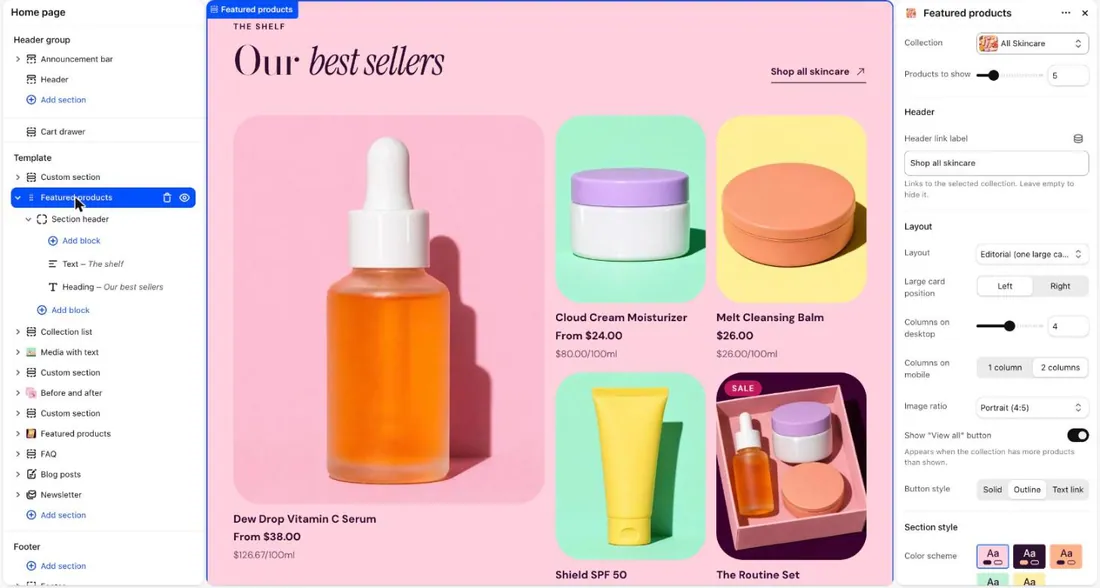
- In the Text box on the right, type your new words.
- Select Save.
Change a heading
Section titled “Change a heading”- Under Section header, select the Heading block (marker 1).
- In the Heading box (marker 2), type your new words.
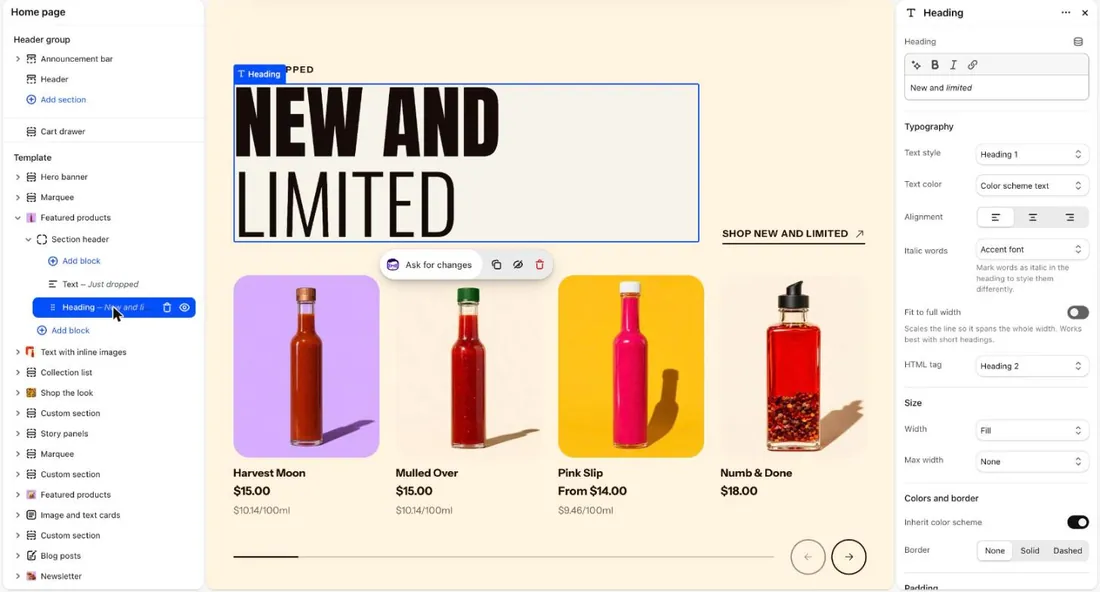
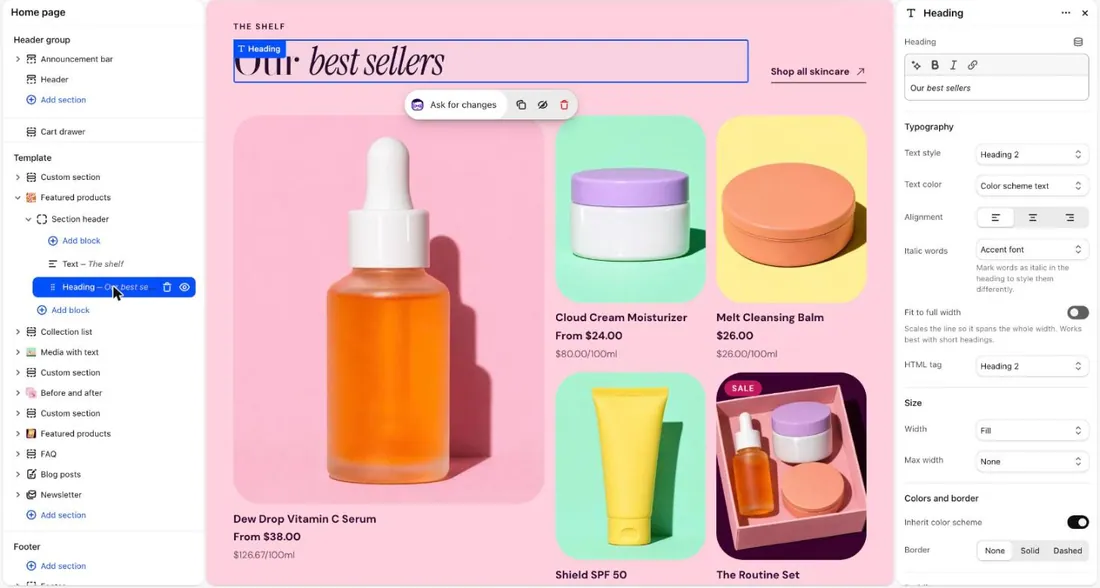
- Check the preview (marker 3).
- To style words in italic, select them, then select the Italic button above the box. Picante shows italic words in the accent font.
- Select Save.
Change a button label and link
Section titled “Change a button label and link”- In the left list, select Hero banner (marker 1).
- Select the Button block in its list (marker 2).
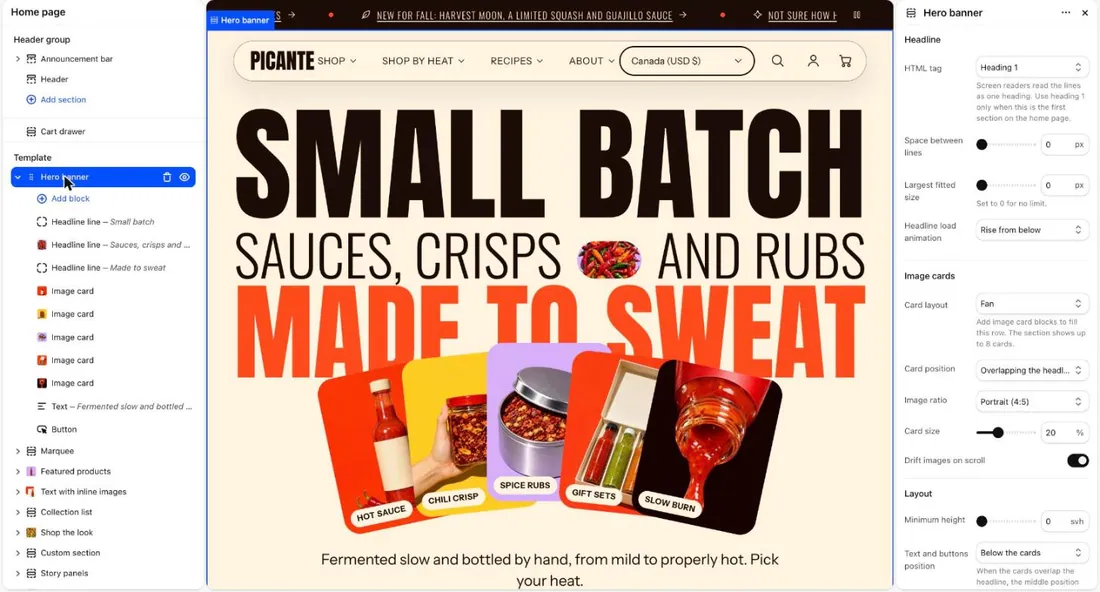
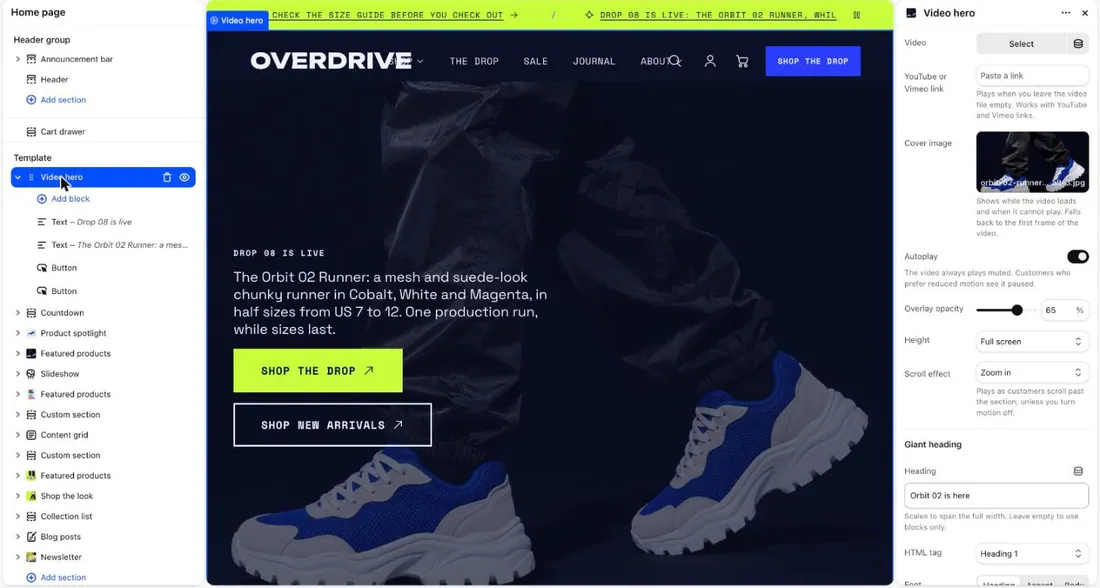
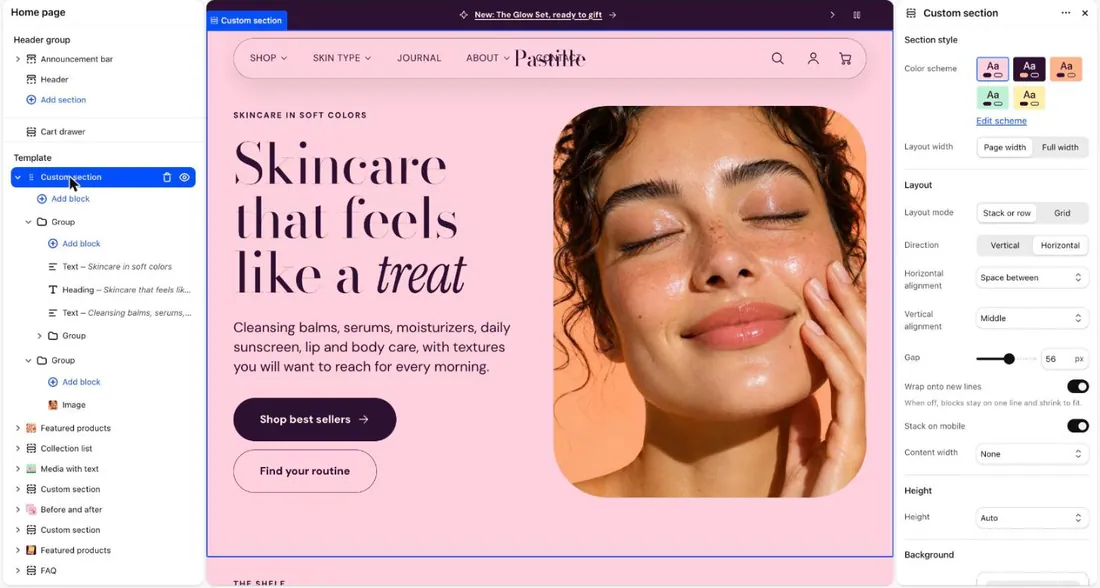
- In Label, type the words you want on the button.
- In Link, paste a web address, or search for one of your pages.
- Select Save.
Replace an image
Section titled “Replace an image”- In the left list, select Hero banner (marker 1).
- Select an Image card block (marker 2).
- Under Image, choose a new picture from your files, or upload one.
- Select Save.
Good to know
Section titled “Good to know”- Your changes show in the preview straight away. They go live when you select Save.
- The Hero banner cards are tall. A portrait photo with a 4:5 shape fits best. See Image sizes.
- Short headings look best when you turn on Fit to full width in the Heading block.
- Each text block has a Text style setting if you want it bigger or smaller.
See every setting: Heading block, Text block and Button block.