Add your theme to your store
Add your theme from the Shopify Theme Store, open it in the theme editor, and publish it when you like it. Your live store stays the same until you publish.
- Go to the Shopify Theme Store and search for your theme’s name: Picante, Overdrive or Pastille.
- Select your theme in the results.
- Select the button that adds the theme to your store. Follow the steps Shopify shows you.
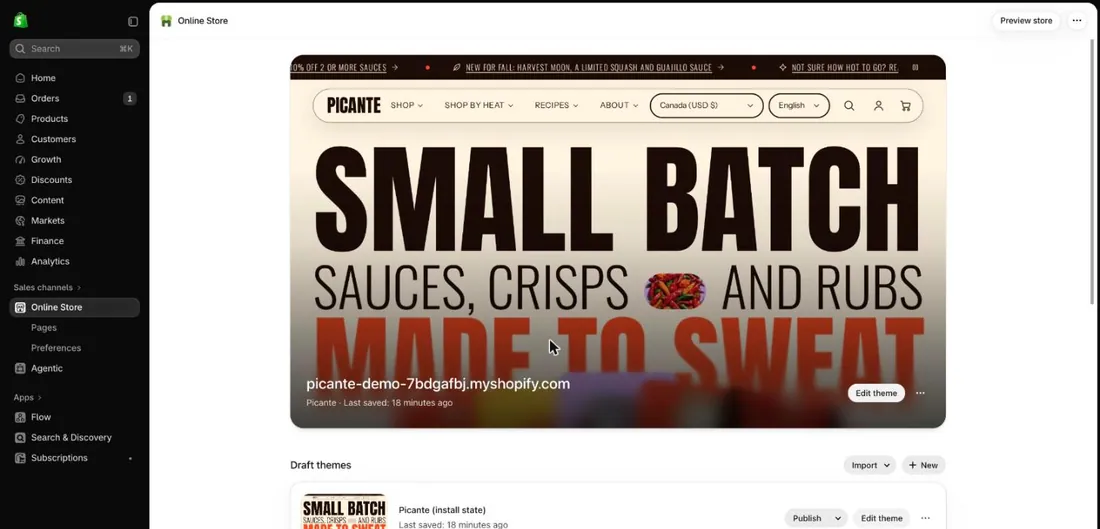
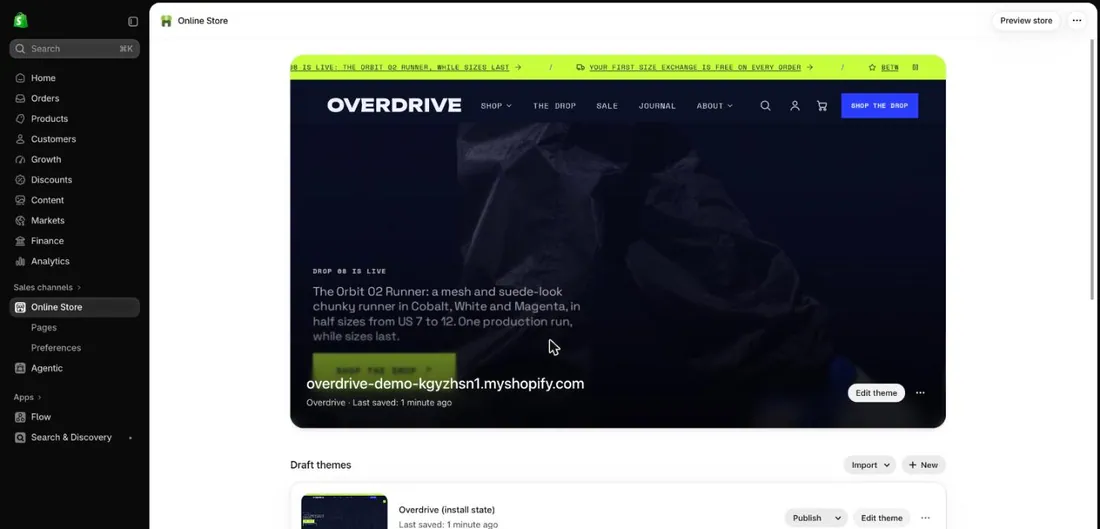
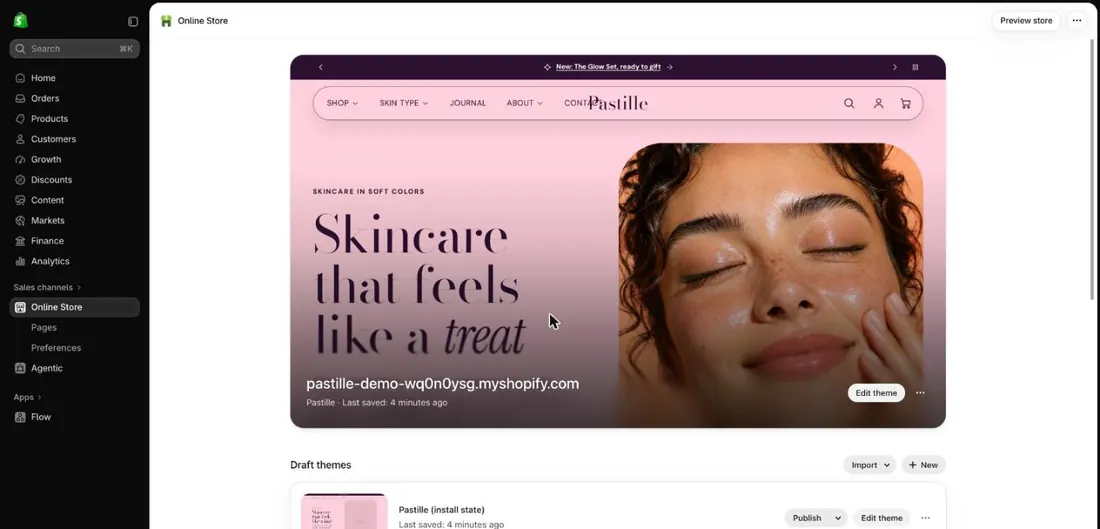
- In your Shopify admin, select Online Store (marker 1).
- Find your theme in the list. New themes appear under Draft themes. A draft is a copy that shoppers cannot see.
- Select Edit theme (marker 2) next to your theme. This opens the theme editor, where you change how your store looks.
- Look at the left panel (marker 1). It lists the parts of your page from top to bottom.
- Look at the preview (marker 2). It shows your page as shoppers will see it.
- Select the page picker (marker 3) to switch to other pages, such as a product or the cart.

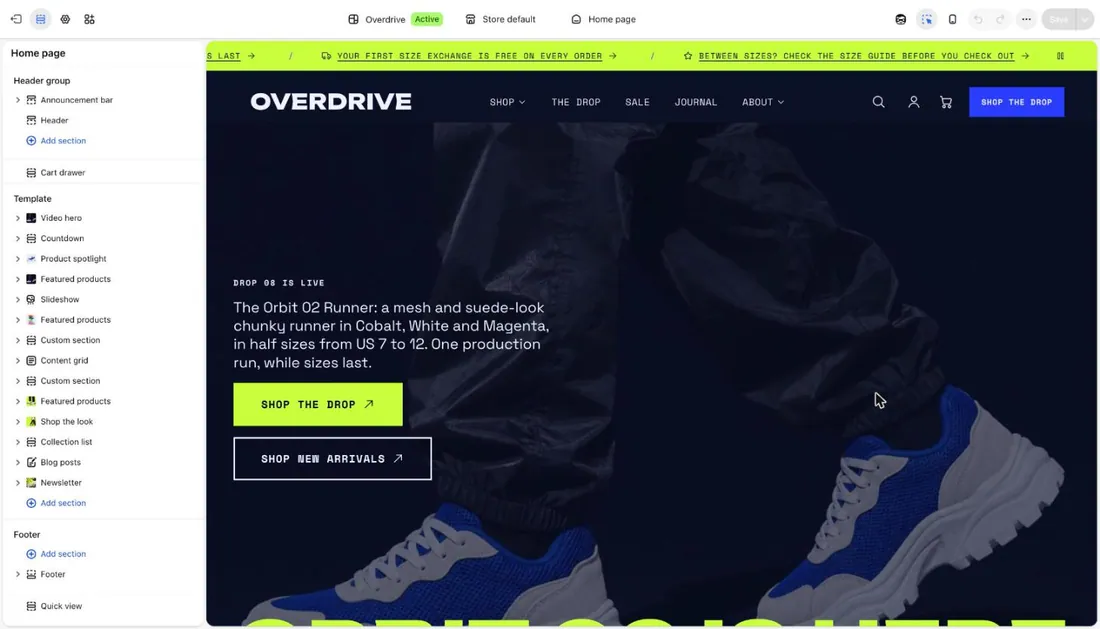
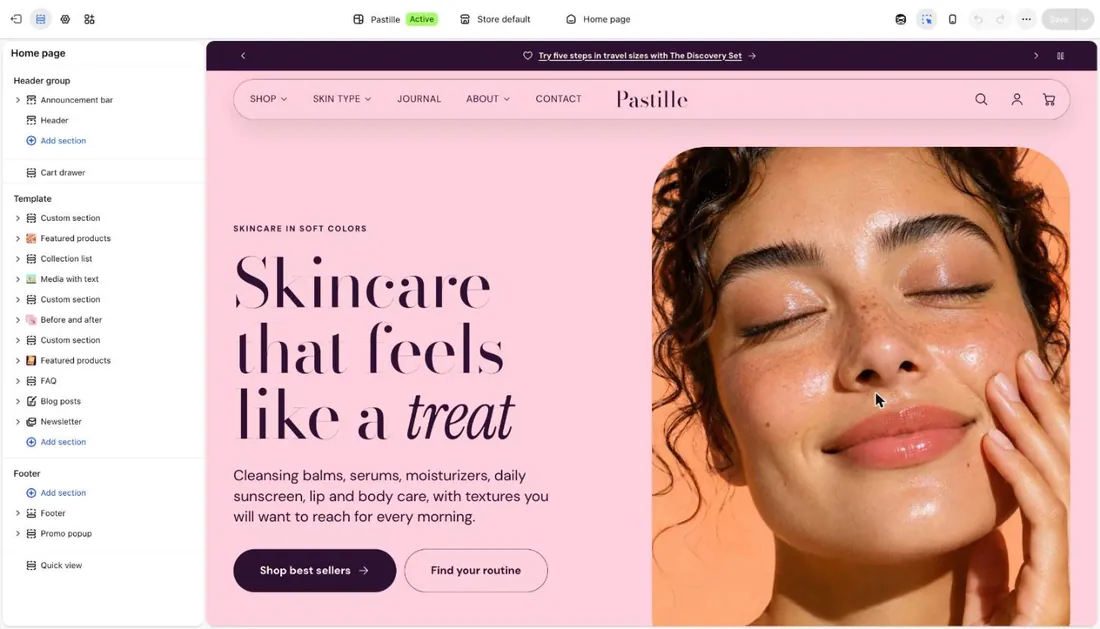
- Select Save (marker 4) whenever you change something.
- Go back to Online Store. Select Publish next to your theme draft.
- Confirm when Shopify asks. The theme is now live.
Good to know
Section titled “Good to know”- Do not publish yet if the page still has sample text. Use the launch checklist first.
- Adding a theme never replaces your live theme. Only Publish does that.
- Each theme can switch to the look of the others. See Switch your theme style.
- Stuck? See Troubleshooting.